
If you want to stop attendees from receiving calendar notifications for booked appointments, you can disable calendar invites in your event settings.
Steps
- Go to Event.
- Open the Advanced tab.
- Turn off Send calendar invite to invitees.
- Save your changes.
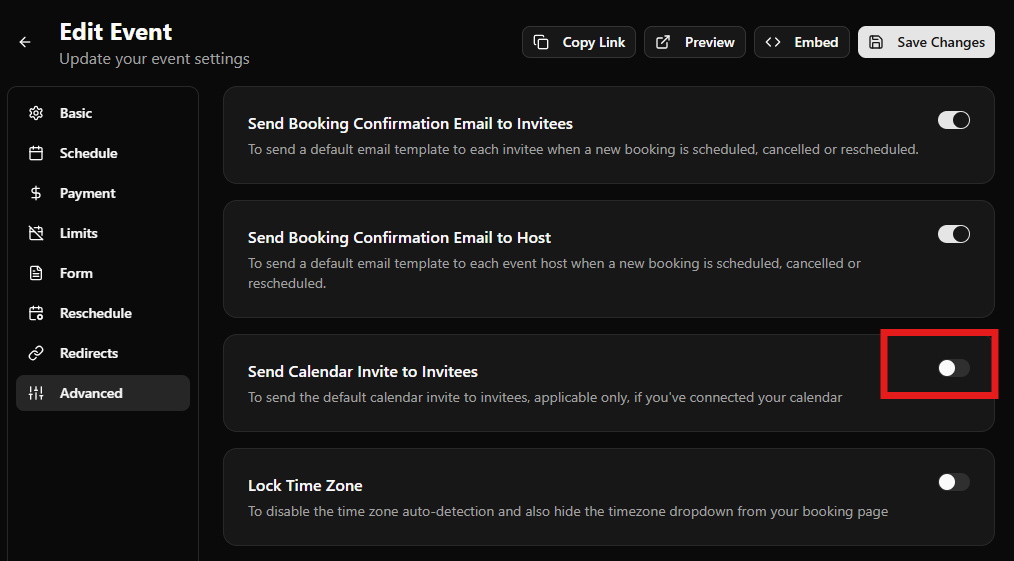
Once disabled, invitees will no longer receive calendar invitations or reminder notifications from their calendar app (such as Google Calendar, Apple Calendar, or Outlook Calendar).
Frequently Asked Questions
Does this affect Google Calendar notifications on Android?
No. This setting only controls whether DaySchedule sends calendar invites to invitees. Existing notifications from Google Calendar notifications on Android, iPhone or other calendar apps are managed by those apps and each user’s notification settings.
Can I enable it again later?
Yes. Simply return to Event > Advanced and turn Send calendar invite to invitees back on at any time.