
Click View on any booking in Bookings to open its details. The page shows everything about one appointment: when and where it is, who is attending, what they answered, what they paid and every notification sent.
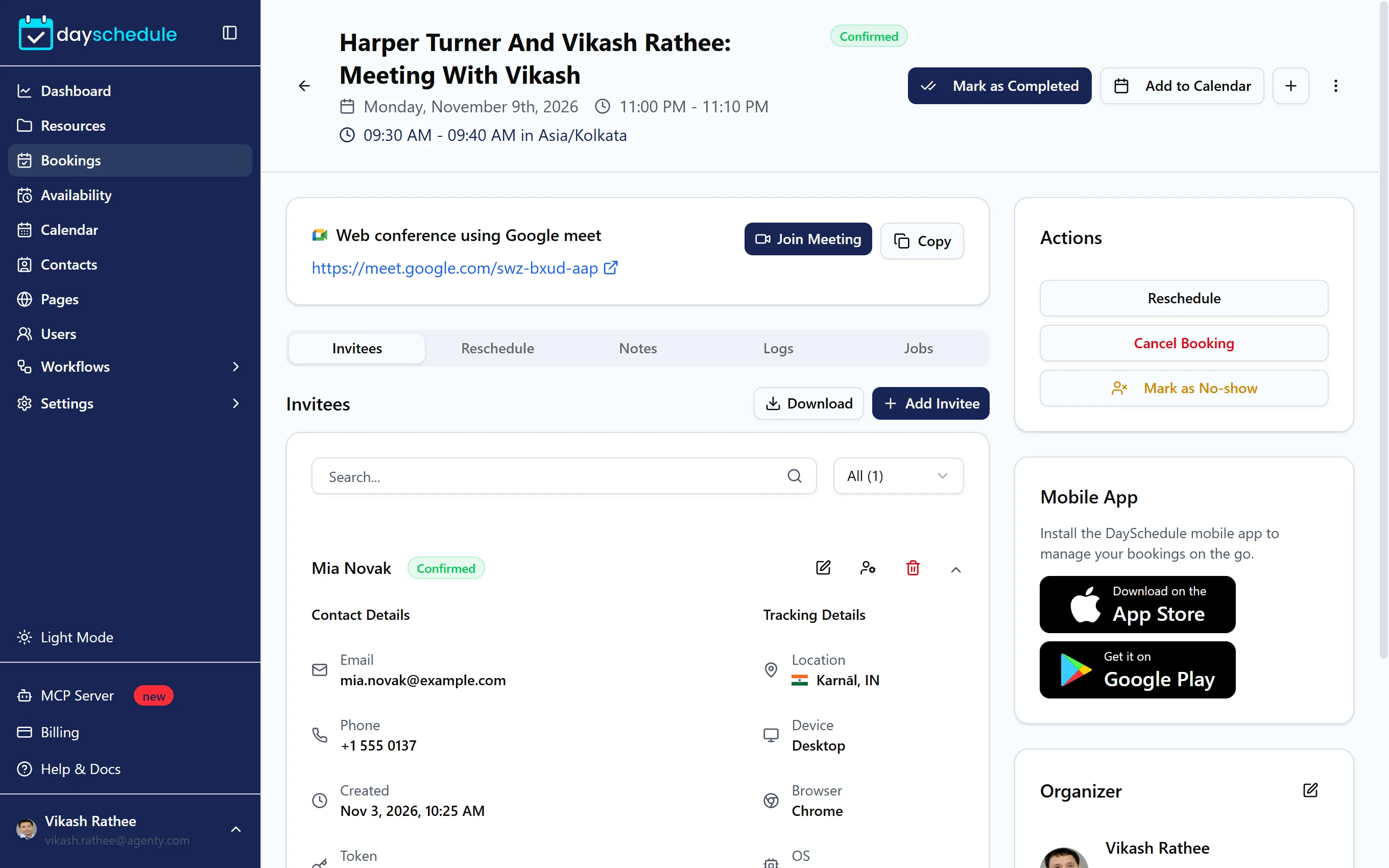
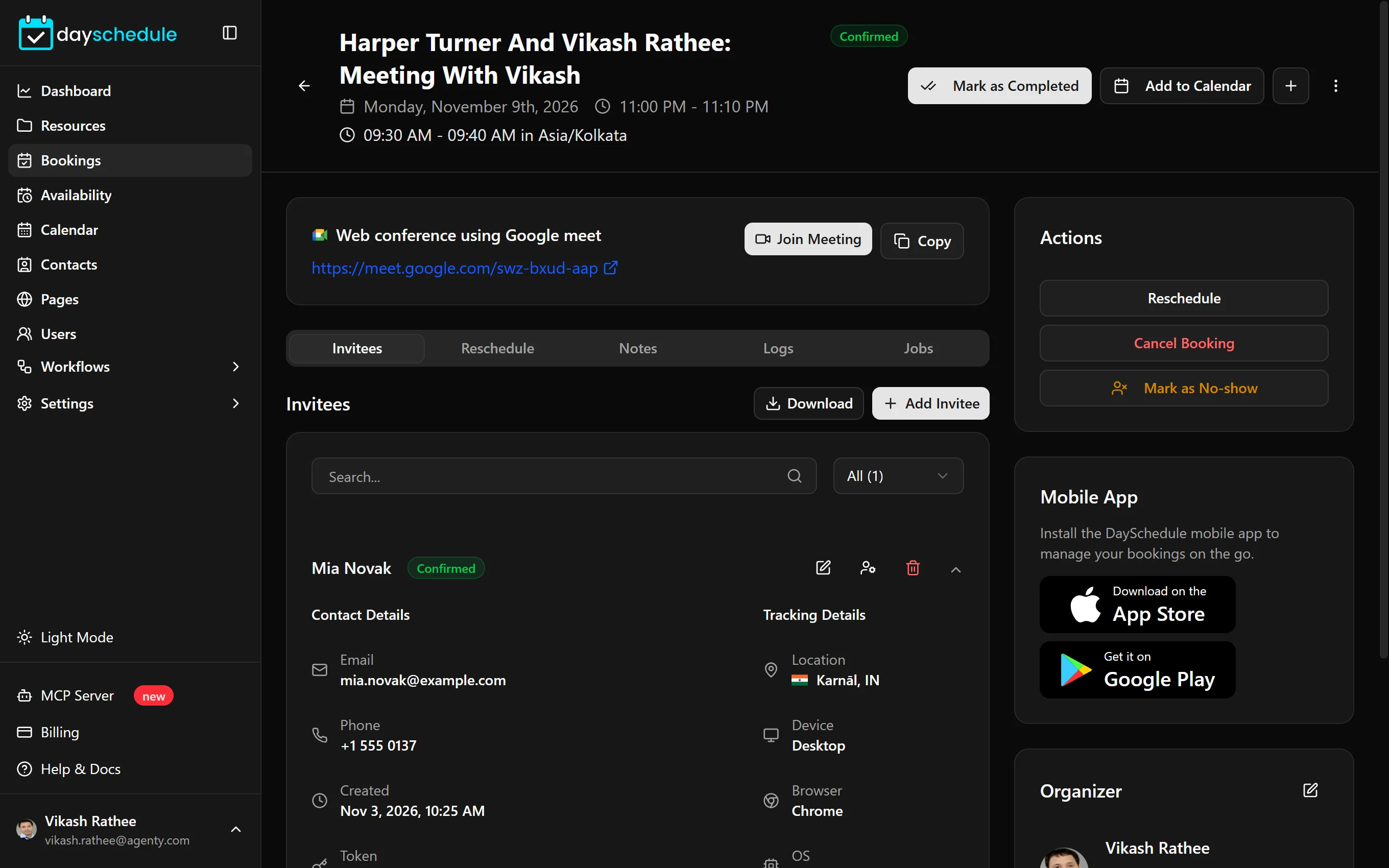
The header shows the title, status, date and time in your time zone, and the time in the invitee's time zone when it's different. From the header you can Mark as Completed, Add to Calendar, create a new booking with +, or delete the booking from the menu.
Add to Calendar adds the booking to Google, Outlook.com, Yahoo or Office 365, or downloads an iCal file. See generate an iCal download link.
Join the meeting
The location card shows the meeting link with Join Meeting and Copy, and the Meeting ID and Password when the app provides them. For phone calls, it shows the number with Call.
Reschedule a booking
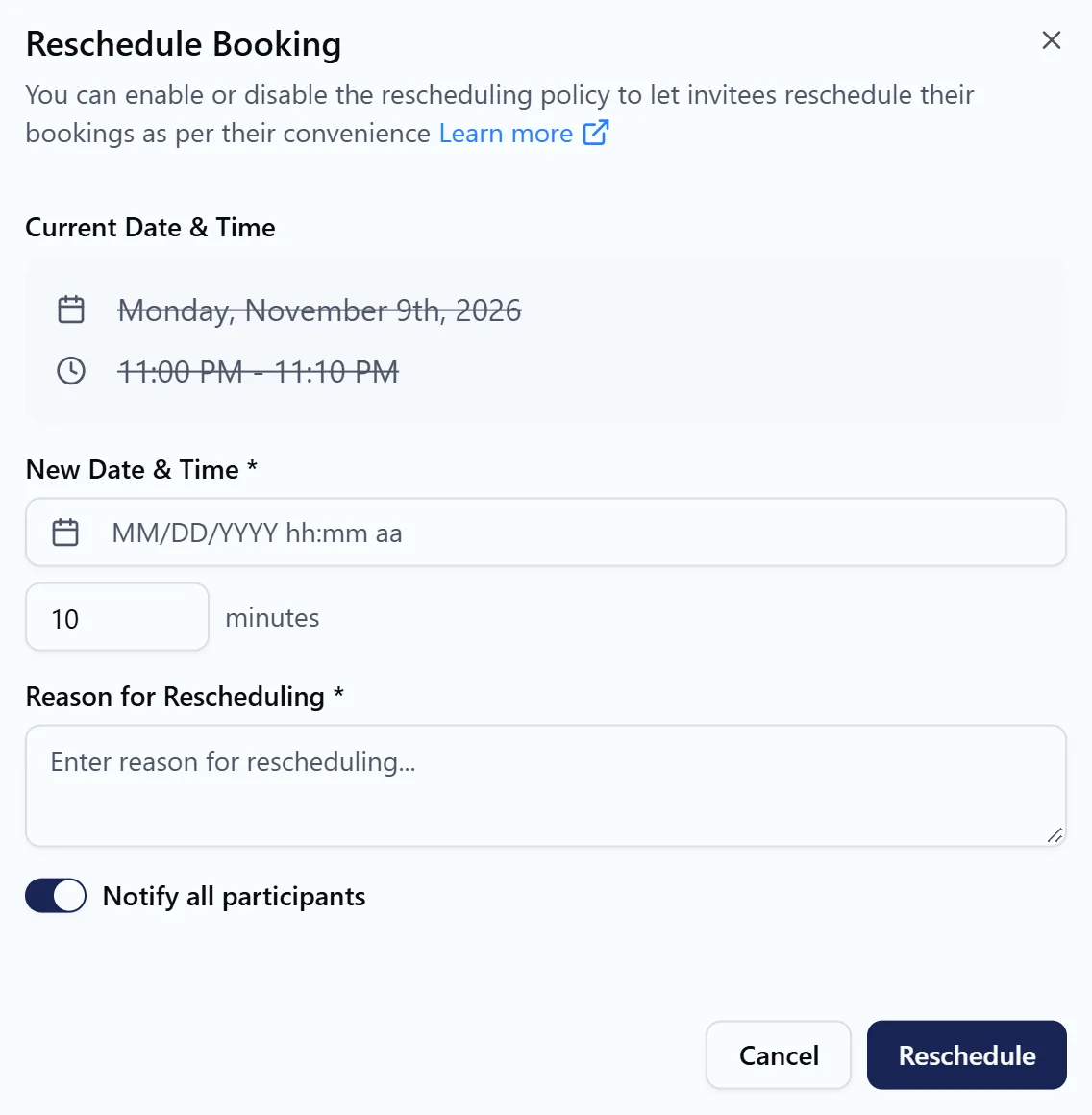
- Click Reschedule under Actions.
- Check the Current Date & Time and pick the New Date & Time, and the duration if the event has several.
- Enter the Reason for Rescheduling.
- Keep Notify all participants on to email the invitees and update their calendar invite.
The Reschedule tab keeps the reschedule history of the booking with each old and new time.
Cancel a booking
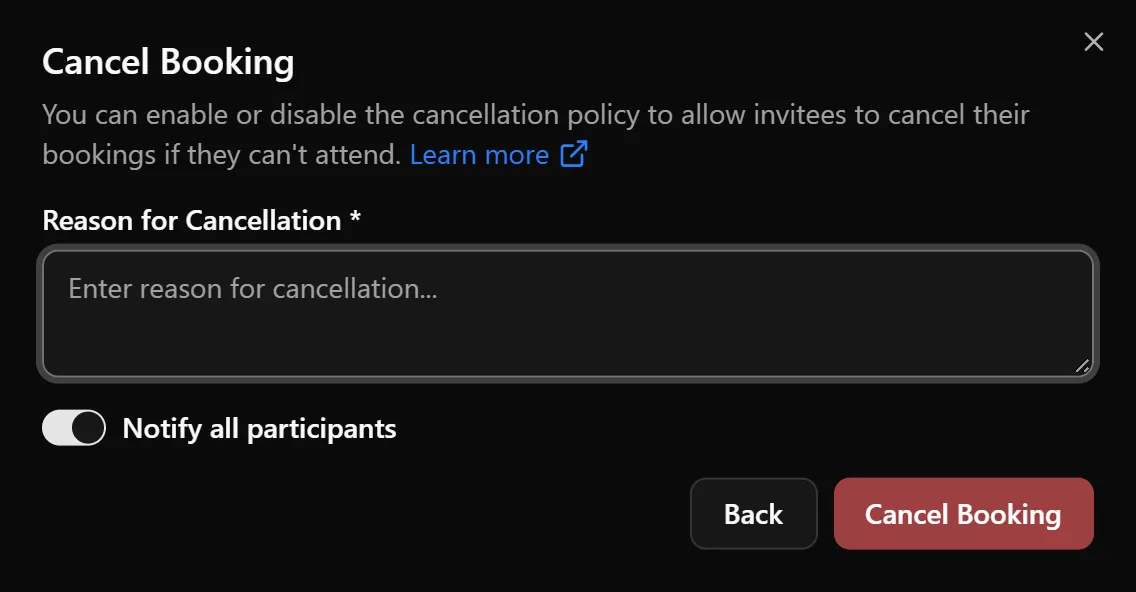
Click Cancel Booking, enter the Reason for Cancellation and choose whether to Notify all participants. The booking stays in your list with the status Cancelled, and a red banner shows who cancelled it, when and why.
Invitees can also reschedule or cancel themselves if your reschedule and cancellation policy allows it.
Mark invitees as no-show
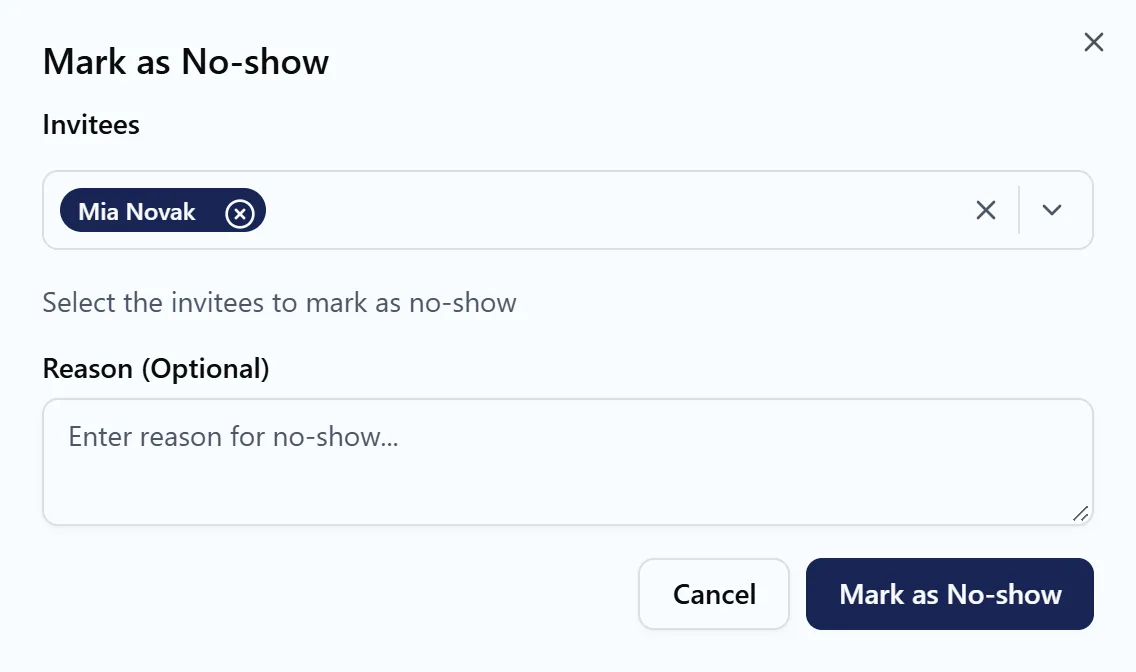
Click Mark as No-show, select the Invitees who didn't attend, and add a Reason if you like. No-shows are tracked separately from cancellations.
Work with invitees
The Invitees tab lists everyone on the booking, which matters most for group events. Search and filter them by status, and Download the list. For each invitee you see:
- Contact Details: email, phone, when they booked and their time zone.
- Additional Questions: their answers to the booking form.
- Payment Details: amount, gateway and transaction ID.
- Tracking Details: their location, device, browser, operating system, IP address and UTM Parameters, so you know which campaign the booking came from.
The icons next to each invitee Edit their details, Change status and Delete them. Change Invitee Status sets one invitee to Confirmed, Canceled or No-show, with an optional comment and Notify invitee.
Add an invitee
Click Add Invitee and enter a Name and an Email or Phone (one of them is required). Use Add Payment Details to record a payment taken outside DaySchedule. See add optional attendees.
Change the organizer
Under Organizer, click Change Organizer, pick the new Assignee, enter a Reason and choose Notify All. Use it when the assigned team member is sick or a round robin booking should go to a specialist.
Notes, logs and jobs
- Notes are private notes for your team. Click Save Notes to keep them.
- Logs show the activity on the booking. If something failed, such as creating the meeting link, the page says "See the logs tab".
- Jobs list the scheduled workflow runs for this booking, such as a reminder 24 hours before. Workflow History links to the full run history.
Approve a booking
When an event uses Require Approval, the booking shows Requires Approval. Confirm or reject the invitee from here, or from the email DaySchedule sends you.