The Meetings tab of the DaySchedule Chrome extension shows what's coming up and gets you into the call on time. Open the side panel from the toolbar and select Meetings.
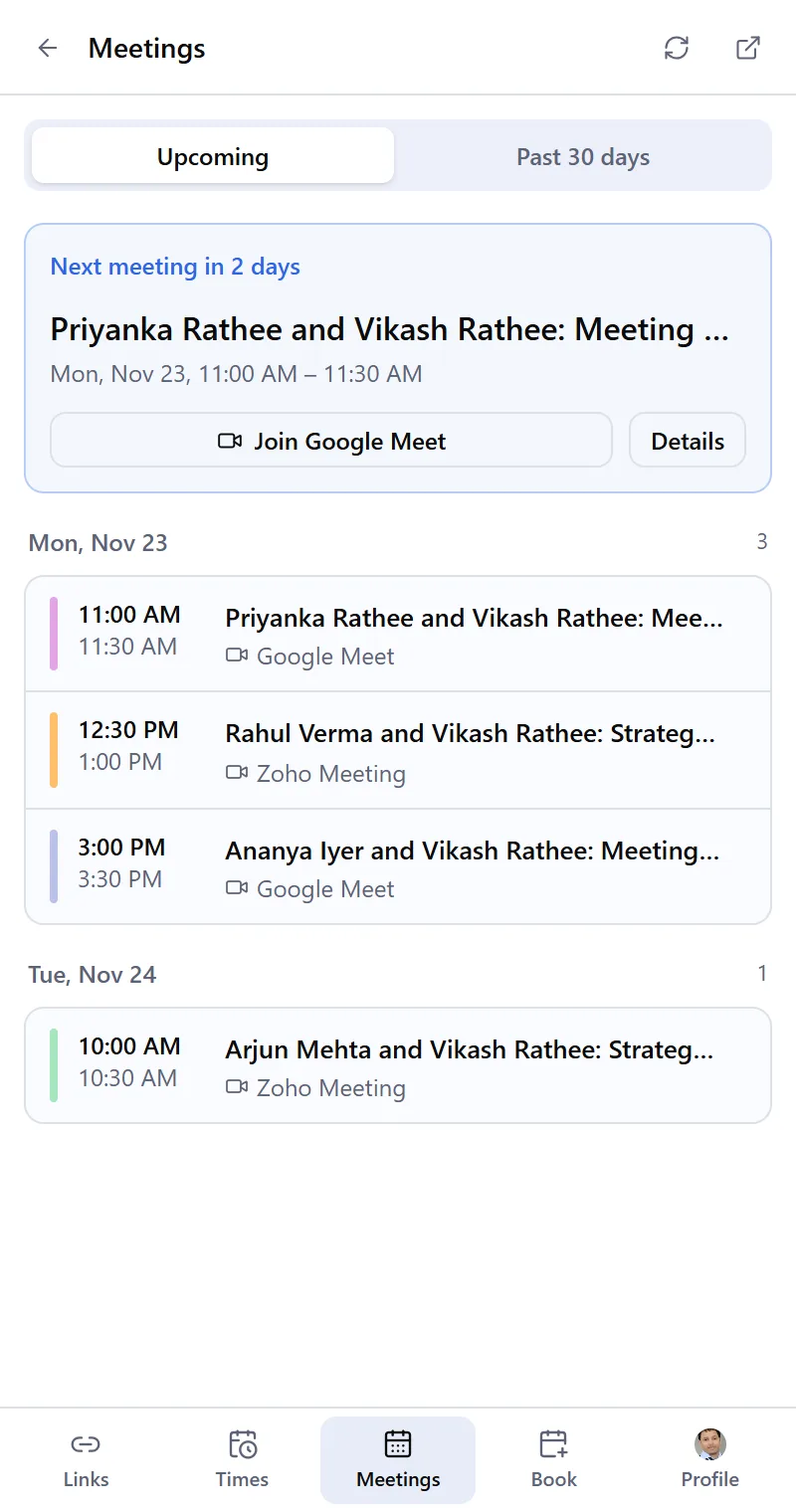
Upcoming meetings
The card at the top shows your next meeting and when it starts. Its Join button opens the Google Meet, Zoom, Microsoft Teams or other video link, and turns into the main button 10 minutes before the start. Once the meeting has started, the card says Happening now.
Below the card, the rest of your upcoming meetings are grouped by day with their time, title, location and status. Pending meetings that need your approval and canceled ones are labeled.
Select Past 30 days to see meetings that already ended. Click the refresh icon to load new bookings, or the open icon to see all bookings in the dashboard.
Meeting details
Click a meeting to open its details:
- Date, time and duration, and the time zone it was booked in
- The location, with Copy and Join buttons for video links, and the meeting ID and passcode when there is one
- Invitees with their email, phone and answers to the booking form questions, plus any guests
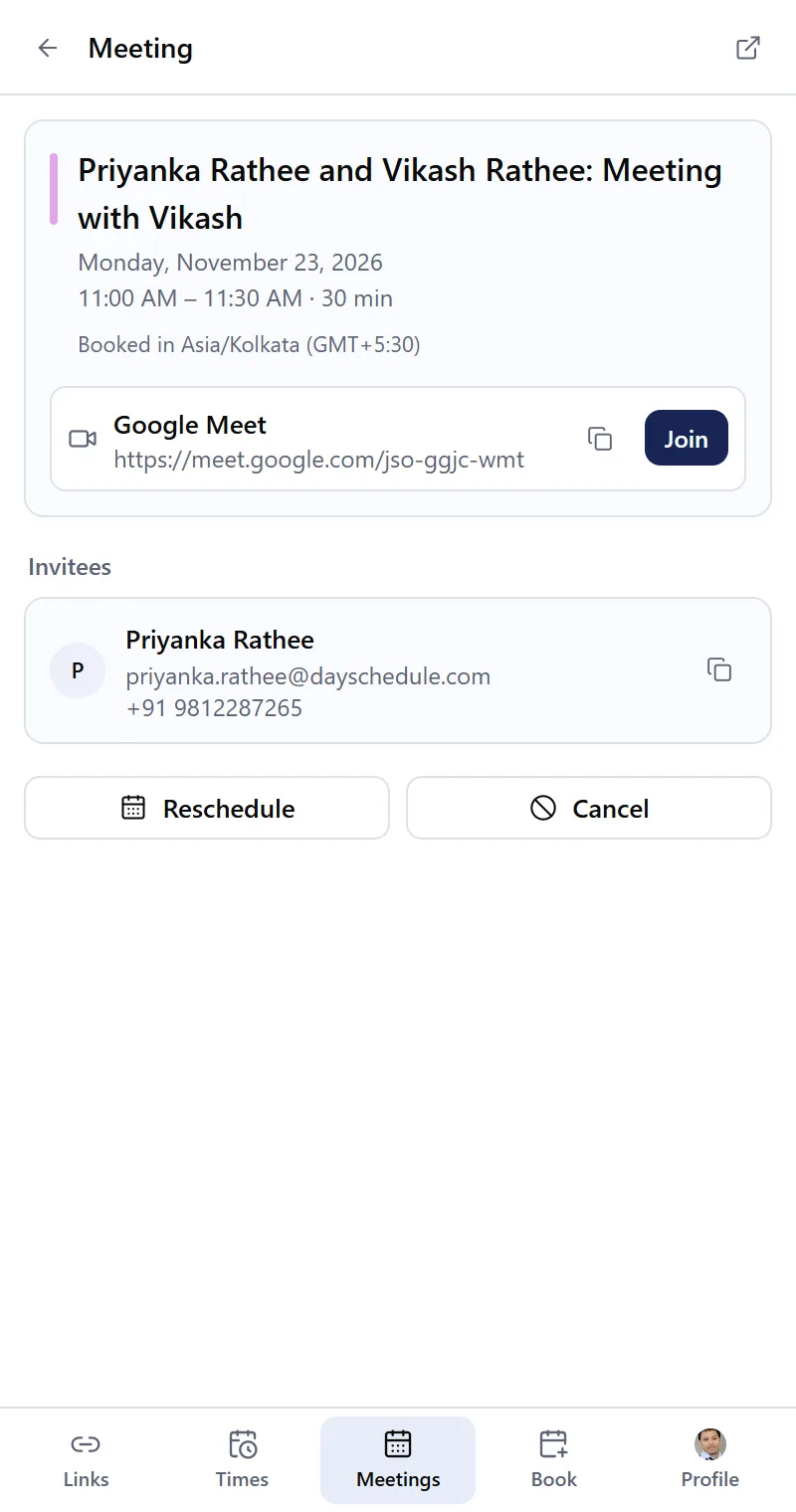
The buttons at the bottom depend on the meeting:
| Meeting | Buttons |
|---|---|
| Pending approval | Approve meeting |
| Upcoming | Reschedule and Cancel |
| Ended | Completed and No-show |
Cancel asks for a reason, then click Cancel meeting. Email everyone about the cancellation is checked by default; uncheck it to cancel without sending emails. Reschedule opens the booking in the dashboard, where you pick the new time.
To change anything else, such as invitees or internal notes, click the open icon at the top to see the booking in the dashboard. See Reschedule, cancel or mark a booking as no-show.
Missing a meeting?
The tab shows bookings made through DaySchedule, not every event on your Google or Outlook calendar. If a booking is missing, click refresh, or look it up in Bookings in the dashboard.