
Many customers check WhatsApp more often than email, so a WhatsApp reminder before the meeting helps cut no-shows. DaySchedule can send it from its own number with one switch, or from your business number through the official WhatsApp Cloud API, Wati or AiSensy.
Invitees need to give a phone number. Add a phone field to the booking form and make it required. Without it, the message fails with "No question found with input type tel".
Built-in WhatsApp messages
Open Workflows, then Automations, and switch on the messages you want under WhatsApp Automations:
- Appointment reminder on Whatsapp (15m), 15 minutes before the meeting
- Booking reminder on Whatsapp (1h), an hour before
- Booking confirmed on Whatsapp, when a booking is made
- Appointment rescheduled on Whatsapp, with the new date and time
- Booking cancelled on Whatsapp, when a booking is cancelled
They're sent from DaySchedule's WhatsApp number using Meta-approved templates, so there's nothing to set up beyond the switch. Automations are part of the paid plans.
Send from your own WhatsApp number
Messages from your own number carry your business name and let invitees reply to you. You need a WhatsApp Business account and message templates approved by Meta.
1. Connect your WhatsApp provider
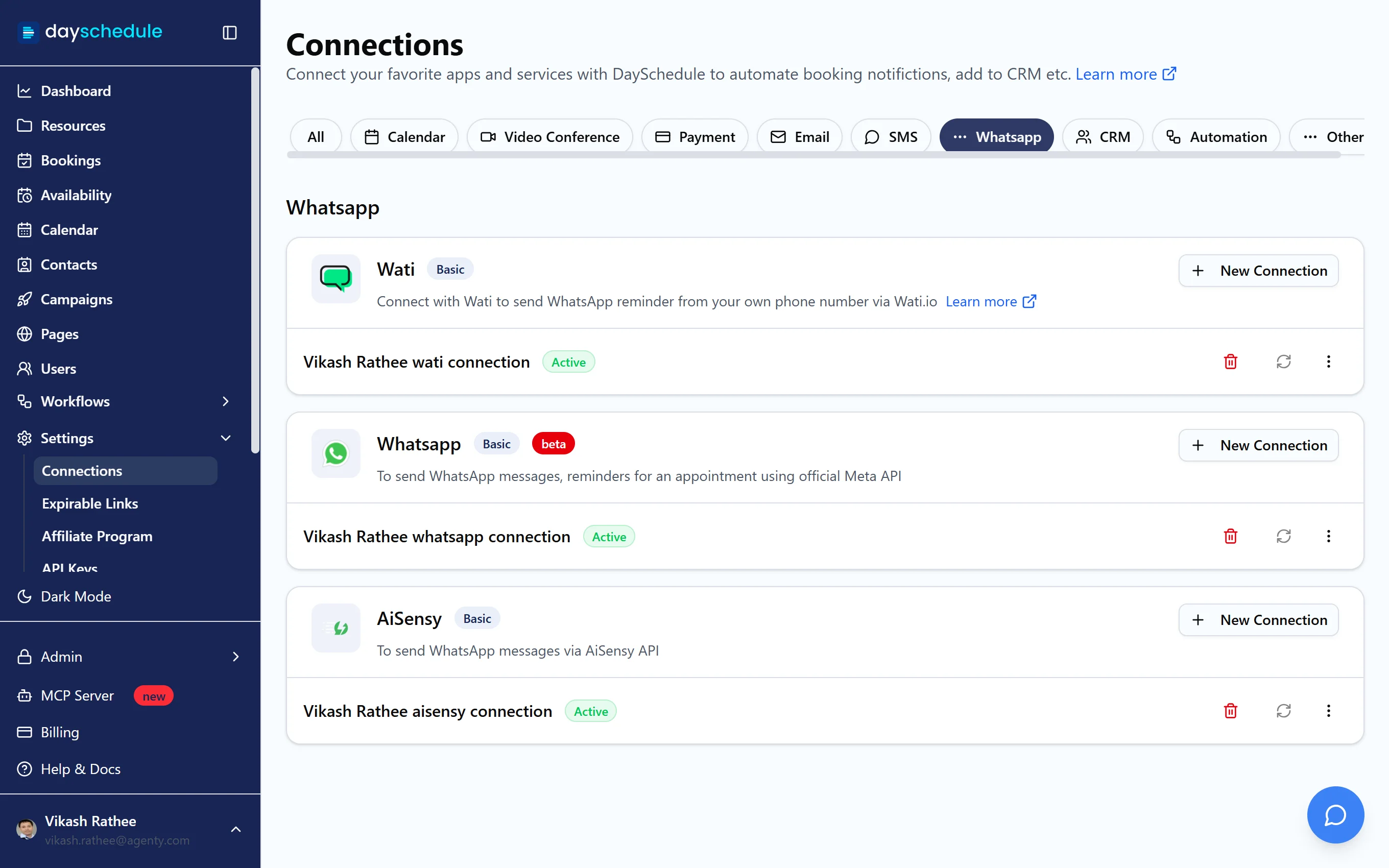
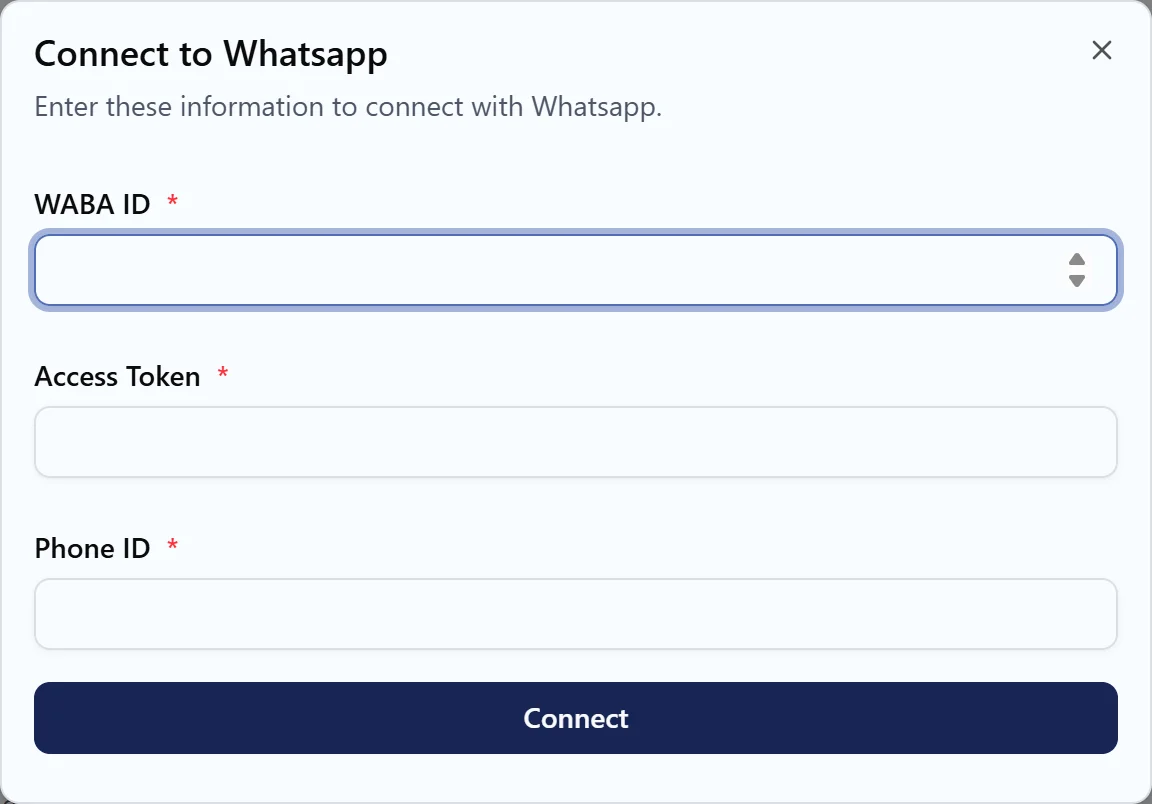
Open Settings, then Connections, select Whatsapp and click New Connection on one of these:
| Connection | What you enter |
|---|---|
| Whatsapp (official Meta API, beta) | WABA ID, Access Token and Phone ID from your app in Meta for Developers |
| Wati | API Endpoint and Access Token from the API settings of your Wati account |
| AiSensy | Access Token (your AiSensy API key) |
All three are available from the Basic plan.
2. Create the workflow
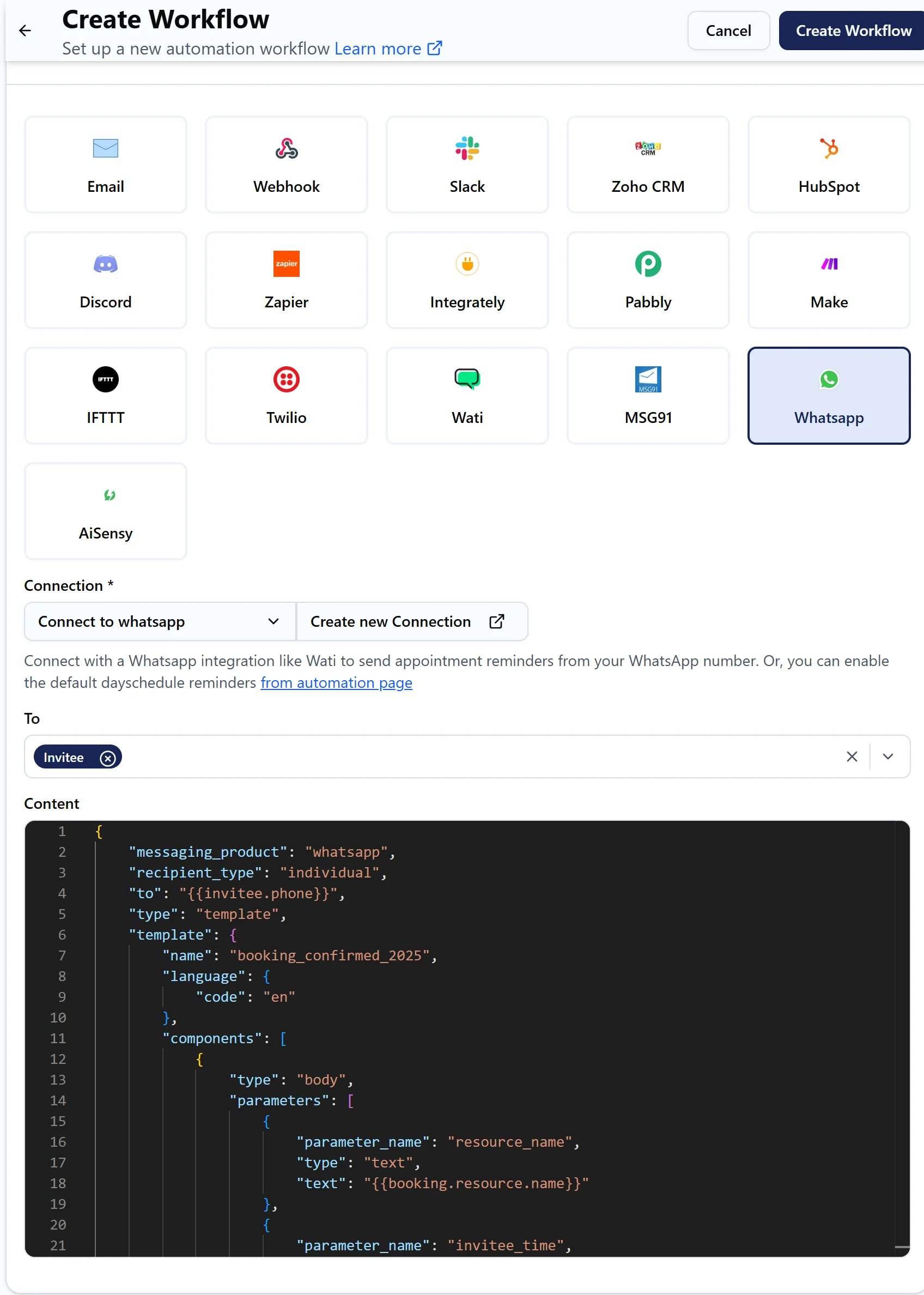
- Open Workflows and click Create Workflow.
- Enter a Name and choose the resources.
- Under Trigger, choose when to send. Before Event with 1 hour sends a reminder, Event Scheduled with Run immediately sends a confirmation, and Event End sends a thank you message.
- Under the action, select Whatsapp, Wati or AiSensy, and pick your connection.
- Under To, choose Invitee, Host or both.
- Edit the Content to use your approved template (see below).
- Click Test run to send a test message, then Create Workflow.
3. Fill in your template
WhatsApp only allows approved templates for messages you start, so the Content is a JSON request in your provider's format. Each action starts with an example you edit:
- Whatsapp (Meta): set
template.nameandtemplate.language.codeto your approved template, and list its variables undercomponents, in the order the template uses them. - Wati: set
template_nameand fillparameterswith the template's variable names and values. - AiSensy: set
campaignNameto your API campaign and list the values intemplateParams.
Use DaySchedule variables for the values, for example:
| Variable | Gives you |
|---|---|
{{invitee.name}} |
Invitee's name |
{{invitee.phone}} |
Invitee's phone number |
{{booking.invitee_time}} |
Date and time in the invitee's time zone |
{{booking.resource.name}} |
Event name |
{{booking.location.join_url}} |
Meeting link |
{{booking.reschedule_url}} |
Link for the invitee to reschedule |
{{booking.cancel_url}} |
Link for the invitee to cancel |
For a message to the host, DaySchedule uses the phone number on the host's profile. Add it with the country code on the My Profile tab of Settings.
Check that messages were sent
Open Workflows, then Run History, and click a job to read its log. It shows the number the message went to and the error returned by WhatsApp, such as a template name that doesn't match or a parameter count that's off. If a workflow fails twice in a row, DaySchedule turns it off and emails you, so fix the error and switch it back on.