
With PayPal connected, invitees are sent to PayPal to pay after they fill in the booking form, and the booking is confirmed when the payment completes. Payments land in your own PayPal account.
Connect PayPal
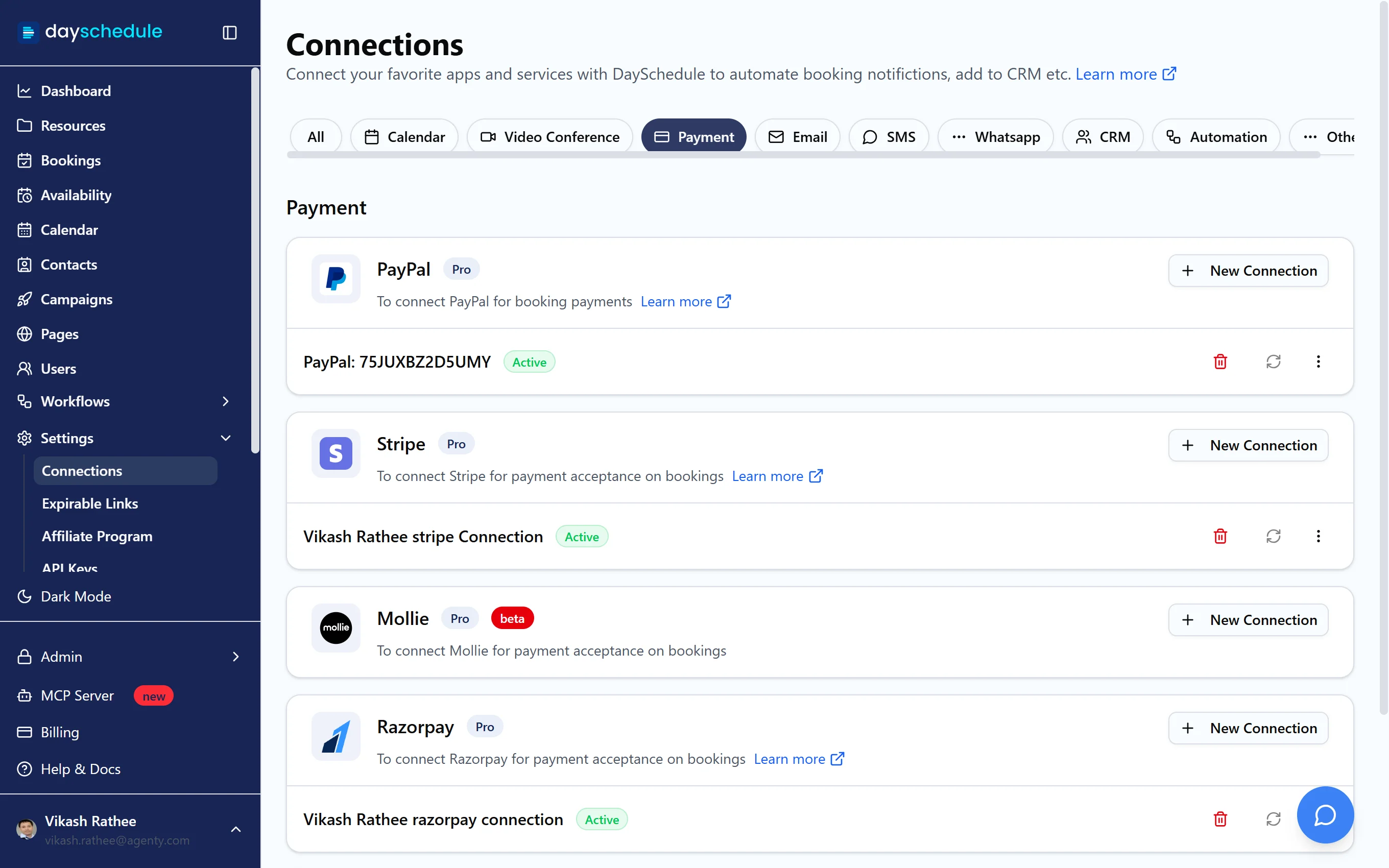
- Open Settings, then Connections, and select Payment.
- Find PayPal and click New Connection.
- Log in to PayPal and approve the connection.
The connection appears under PayPal with your PayPal merchant ID and the status Active. PayPal needs the Pro plan.
Charge for an event
- Open the event from Resources and select the Payment tab.
- Turn on Accept Payment.
- Under Payment Gateways, select PayPal.
- Under Pricing, click Add Price and enter a name, the currency and the amount.
- Click Save Changes.
Pick a currency your PayPal account can receive. If you also select Stripe or another gateway, invitees choose how they want to pay.
Find a payment
The booking's Payment Details show the Amount, Payment Gateway and Transaction Id. Use the transaction ID to find the payment in PayPal, where you also issue refunds. Cancelling the booking in DaySchedule doesn't refund it.