
With Zoom connected, DaySchedule creates a new Zoom meeting the moment someone books. The join link and passcode go into the confirmation email, the calendar invite and the booking in your dashboard. You don't create meetings or paste links by hand.
Connect Zoom
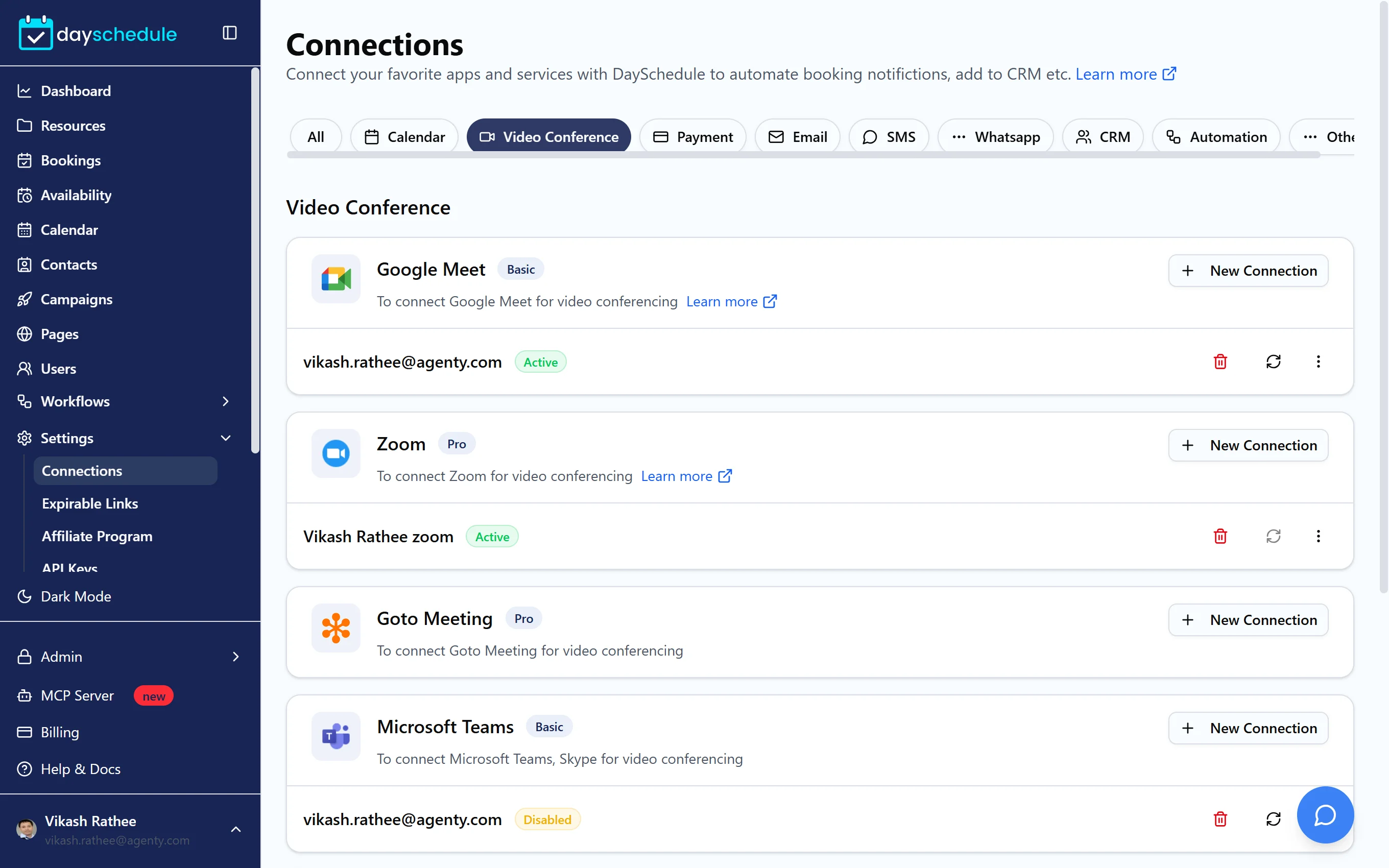
- Open Settings, then Connections, and filter by Video Conference.
- Find Zoom and click New Connection.
- Sign in to Zoom and allow DaySchedule to create meetings on your account.
The connection shows as Active. Zoom needs the Pro plan.
Use Zoom as the event location
- Open the event from Resources.
- In the Location card on the Basic tab, click Select a Location.
- Choose Zoom under Video Conference.
- Click Save Changes.
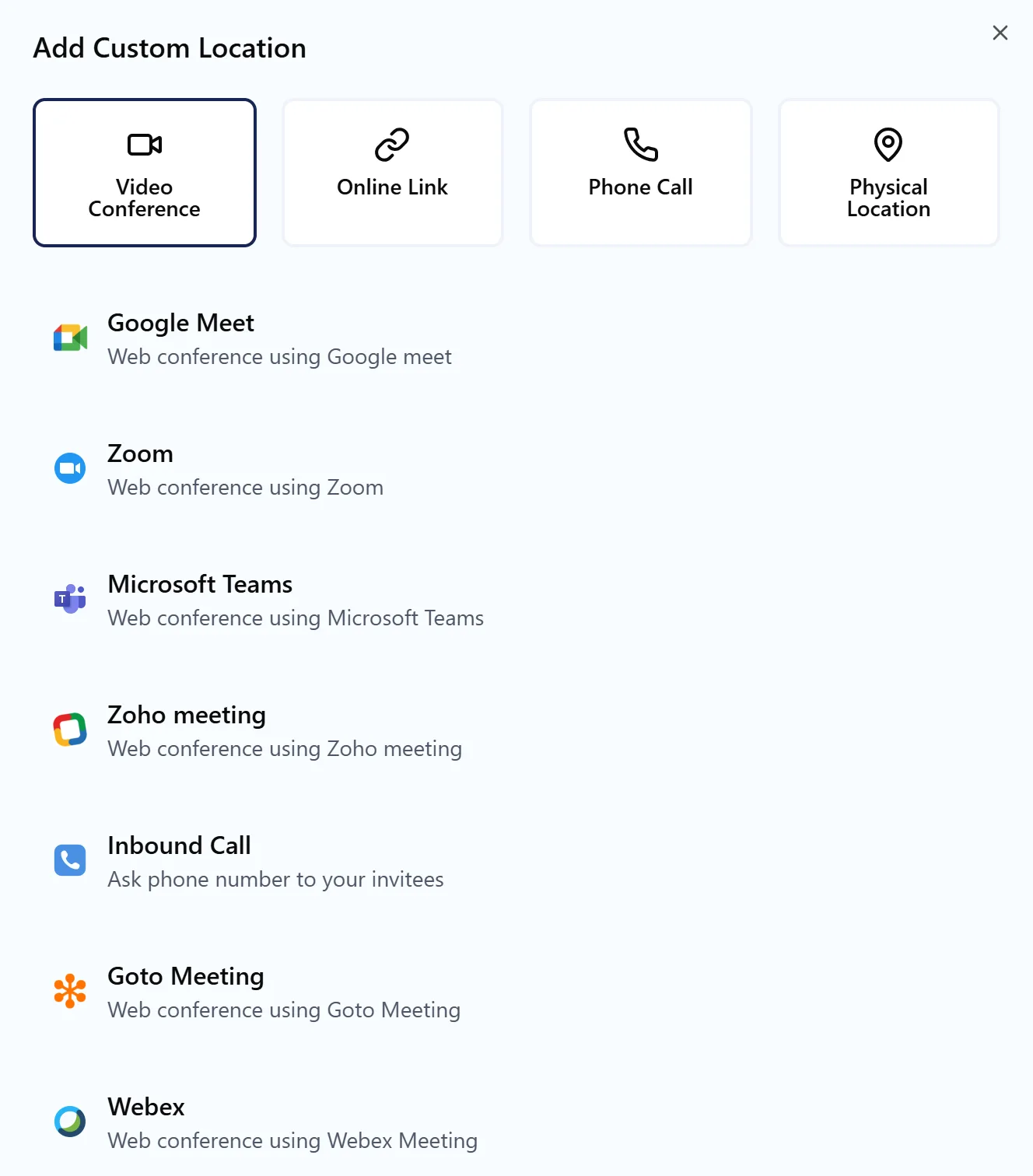
To let invitees choose, add a second location such as Phone Call or Google Meet. See Meeting locations.
What happens when someone books
DaySchedule creates a scheduled meeting on the host's Zoom account, using the booking's subject, start time, duration and time zone. The meeting has its own ID and passcode, not your Personal Meeting ID, and participants can join before the host.
- The meeting appears under Meetings in your Zoom app or on zoom.us.
- The invitee gets the join link in the confirmation email.
- If you've also connected Google Calendar or Outlook, the booking is added to your calendar with the Zoom link as the location.
- When the booking is rescheduled, the Zoom meeting moves to the new time. When it's cancelled, the Zoom meeting is deleted.
Open the booking from Bookings to find the link. The location card has Join Meeting and Copy. See Booking details.
Zoom for a team
Each host uses their own Zoom account. Every team member connects Zoom under their own login in Settings, then Connections. In a round robin event, set Zoom as each member's location, and the meeting is created on the account of whoever gets the booking.
Use Rename in the connection menu if you connect more than one Zoom account, for example a personal and a team account.
If a booking has no Zoom link
The host must have an active Zoom connection when the booking is made. If the connection was deleted or shows Disabled, DaySchedule can't create the meeting. Click the refresh icon on the connection to sign in again, and send a Zoom link yourself to anyone who booked while it was disconnected.
In a team, check that every host on the event has connected their own Zoom. A connection on your account doesn't create meetings for other members.
Related
- Microsoft Teams integration
- Send email, SMS and WhatsApp reminders with the Zoom link before the meeting
- Use the Zoom app for appointments