
A one-on-one event lets one person book a time with one host. Use it for consultations, discovery calls, demos, interviews and office hours. Each booking blocks that time on the owner's schedule and connected calendar, so nobody else can book it.
Create a one-on-one event
- Open Resources and click Create Resource.
- Under Appointments, choose One on one.
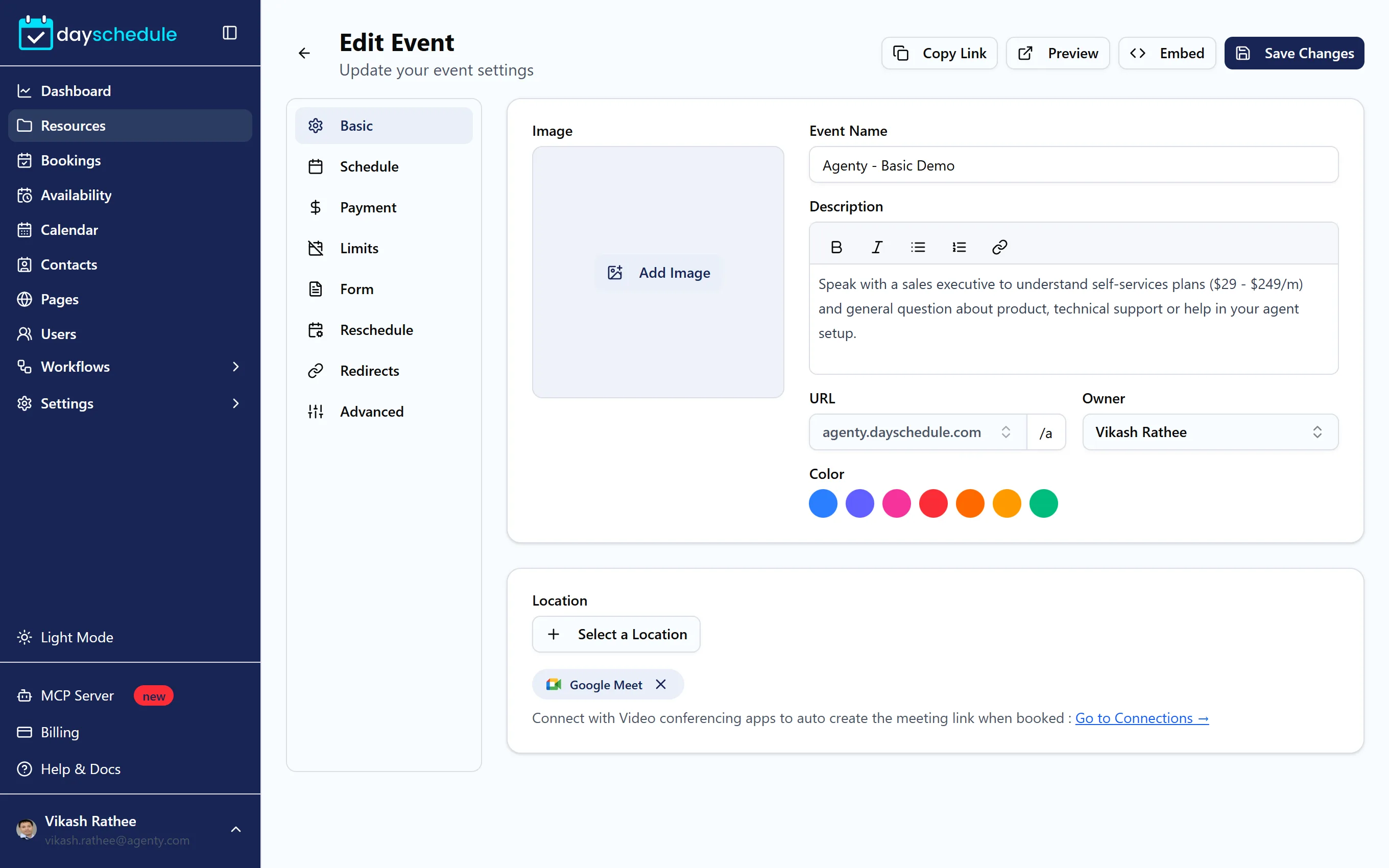
- On the Basic tab, fill in the event details (see below) and click Save Changes.
You need a booking page and a schedule before you can create an event. If either is missing, the editor shows a Create a Page or Create a Schedule button.
Event details on the Basic tab
- Image shows at the top of the event on your booking page. Upload your own or pick a photo from Unsplash.
- Event Name is what invitees see, for example "30 Minute Strategy Call". The URL is filled in from the name when you create the event.
- Description supports bold, italic, lists and links. Tell invitees what the meeting covers and how to prepare.
- URL has two parts: the booking page, such as
acme.dayschedule.com, and the event path, such as/strategy-call. Pick a different page from the list to move the event. - Owner is the team member who hosts the meeting. Bookings use the owner's schedules and calendar. This field appears for users with team access.
- Color marks the event in the dashboard calendar.
- Location is where the meeting happens: Google Meet, Zoom, Microsoft Teams, a phone call, an address or a custom link. See Add a meeting location.
The other tabs
Each tab controls one part of the booking experience:
| Tab | What you set | Guide |
|---|---|---|
| Schedule | Durations, how far ahead people can book, the schedule, slot intervals, buffer time and minimum notice | Durations, buffers and notice |
| Payment | Payment gateways and prices | Accept payments |
| Limits | Maximum bookings per day or overall | Limit bookings |
| Form | The questions invitees answer when booking | Booking form |
| Reschedule | Whether and until when invitees can reschedule or cancel | Reschedule and cancellation policy |
| Redirects | A thank you message or redirect after booking | Redirect after booking |
| Advanced | Approval, guests, privacy, language, calendar checks, emails and time zone | Advanced settings |
Share the event link
The buttons at the top of the editor work as soon as the event is saved:
- Copy Link copies the booking URL, for example
https://acme.dayschedule.com/strategy-call. - Preview opens the booking page in a new tab, exactly as invitees see it.
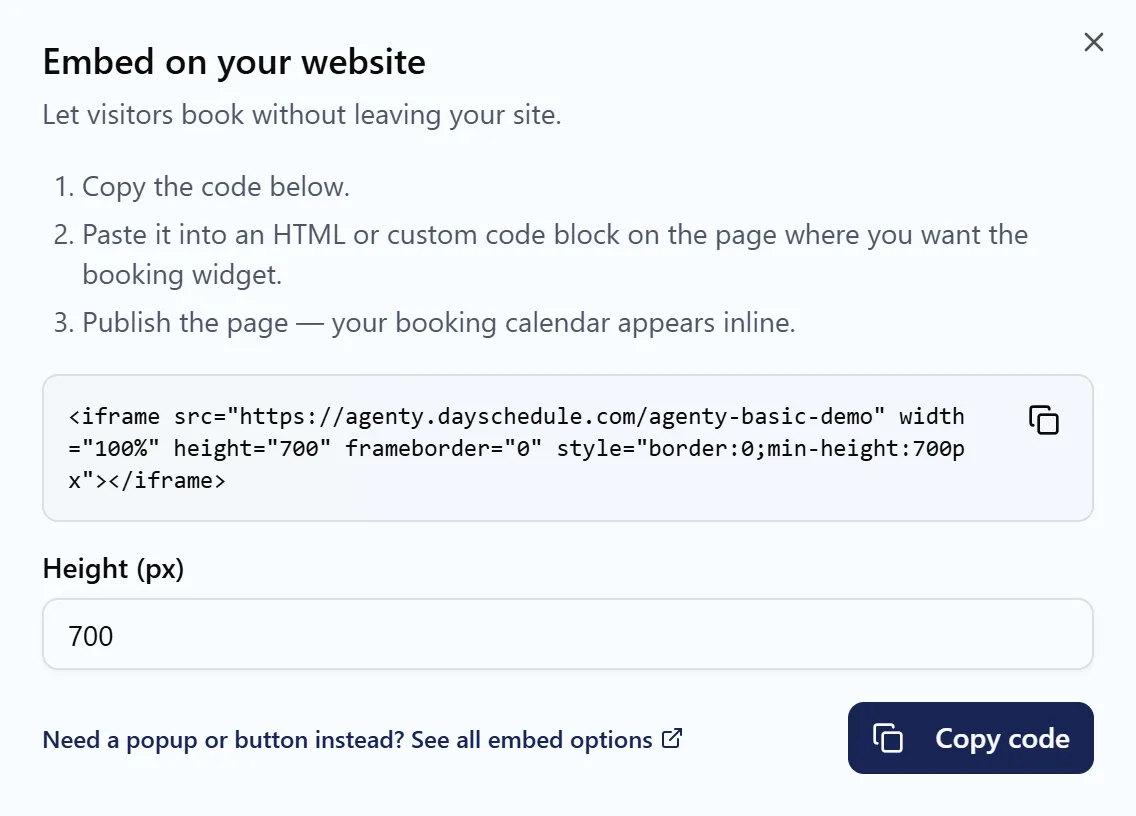
- Embed gives you the code to show the booking calendar on your own website. See Share and embed your booking page.
To book a meeting for a customer yourself, for example while you're on the phone with them, use Create Booking on the Bookings page. See Create a booking from the dashboard.