
Most calendar problems come down to one of four things: the event isn't checking your calendar, the busy event is on a calendar DaySchedule doesn't read, the event is marked Free, or the connection has expired. Work through the section that matches what you see.
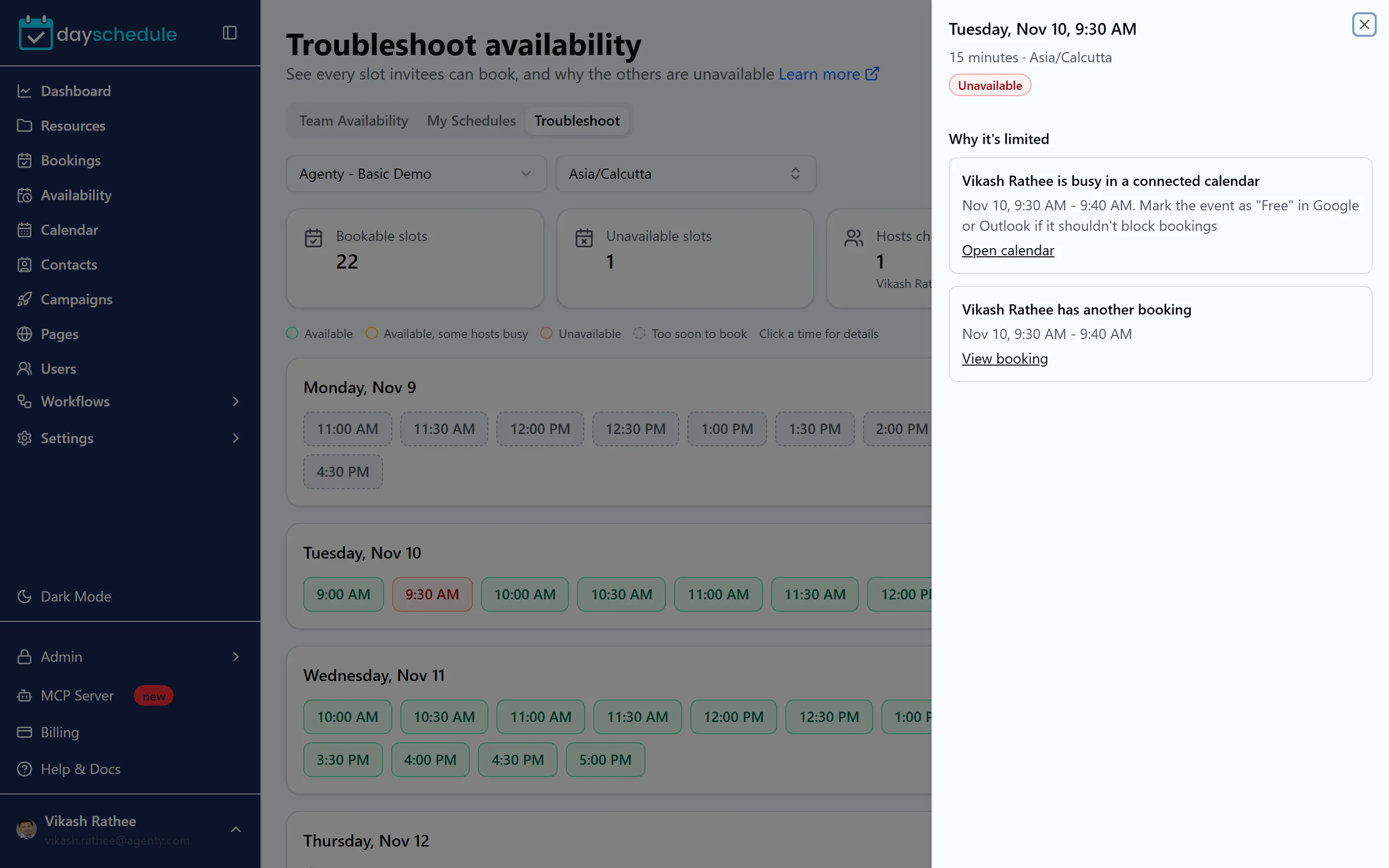
Start with the Troubleshoot page. It shows each slot for the next week and the reason any time is unavailable, including "Busy in a connected calendar". The Calendars checked card tells you how many calendars were read, or "Off" if the event doesn't check them. See Troubleshoot availability.
Click a red slot to see why it's blocked. A calendar conflict shows the host's name, the busy time, and a reminder that marking the event as Free stops it blocking bookings.
I'm busy, but the time can still be booked
Check these in order:
- Is a calendar connected? Open Settings, then Connections. You need an Active Google Calendar or Office 365 Calendar connection under your own login. The Troubleshoot page shows "No calendar connected" when there isn't one.
- Is Check Calendar Conflicts on? Open the event from Resources, select the Advanced tab and make sure Check Calendar Conflicts is turned on. If it's off, the Troubleshoot page shows "Calendar conflict check is turned off for this event".
- Is the busy event on the right calendar? DaySchedule reads the primary calendar of a Google account and the default calendar of a Microsoft account. Events on a secondary calendar, a shared calendar, or a calendar you're subscribed to aren't checked. Move the event to your main calendar, or connect the other account too.
- Is the event marked Free? Events set to Free (Google) or Free (Outlook) don't block time. All-day events are often Free by default. Open the event in your calendar and change Show as or Availability to Busy.
- Does every host have a calendar connected? In round robin and group events, each host's own calendar is checked. A colleague without a connected calendar can be booked at any time inside their working hours.
Webinars and venue bookings don't check calendars. Webinars run at fixed times, and venues are booked against the venue's own schedule.
A booking isn't on my calendar
- The connection is Disabled. Open Settings, then Connections, and click the refresh icon on the connection to sign in again. This happens after a password change, when you revoke access in Google or Microsoft, or when an admin removes the app.
- You have more than one calendar connected. Each booking is added to only one connected calendar. Check your other calendar, and use Rename on each connection so you know which is which.
- It's a venue booking. Venue bookings aren't added to the host's calendar, so the booking doesn't block the host's own events.
- You're looking at a different calendar. Bookings go to the primary Google calendar or the default Outlook calendar, not a secondary one.
Every booking is listed under Bookings in DaySchedule, whichever calendar it went to. See Manage bookings.
Two people booked the same time
DaySchedule never offers a time that's already booked on DaySchedule for the same host. Double bookings usually mean the other meeting was on a calendar DaySchedule doesn't read (see above), or the meeting was added to your calendar after the invitee loaded the booking page. Ask the invitee to reschedule, or reschedule the booking yourself.
The invitee didn't get a calendar invite
Check that Send Calendar Invite to Invitees is turned on in the event's Advanced tab, and that a calendar is connected for the host. The invite comes from Google or Outlook, so ask the invitee to check spam. The DaySchedule confirmation email has its own Add to calendar options either way. See Advanced event settings.
"Need admin approval" when connecting Outlook
Your Microsoft 365 organization requires admin consent for new apps. Ask your IT admin to approve DaySchedule in the Microsoft Entra admin center. See Connect Outlook or Office 365 calendar.