
n8n works with DaySchedule in both directions. A DaySchedule workflow posts each booking to an n8n Webhook node, and n8n's HTTP Request node calls the DaySchedule API to look up slots, create bookings or add contacts.
Workflows need the Pro plan.
Receive bookings in n8n
- In n8n, add a Webhook node. Set HTTP Method to POST and copy the Test URL.
- In DaySchedule, open Workflows and click Create Workflow.
- Enter a Name, choose the resources and set the Trigger. For new bookings, choose Event Scheduled and turn on Run immediately.
- Under the action, select Webhook and paste the n8n URL into Webhook URL.
- In n8n, click Listen for test event. In DaySchedule, click Test run. The sample booking appears in n8n.
- Build the rest of the n8n workflow, then activate it.
- Replace the Test URL in the DaySchedule action with the n8n Production URL and click Create Workflow.
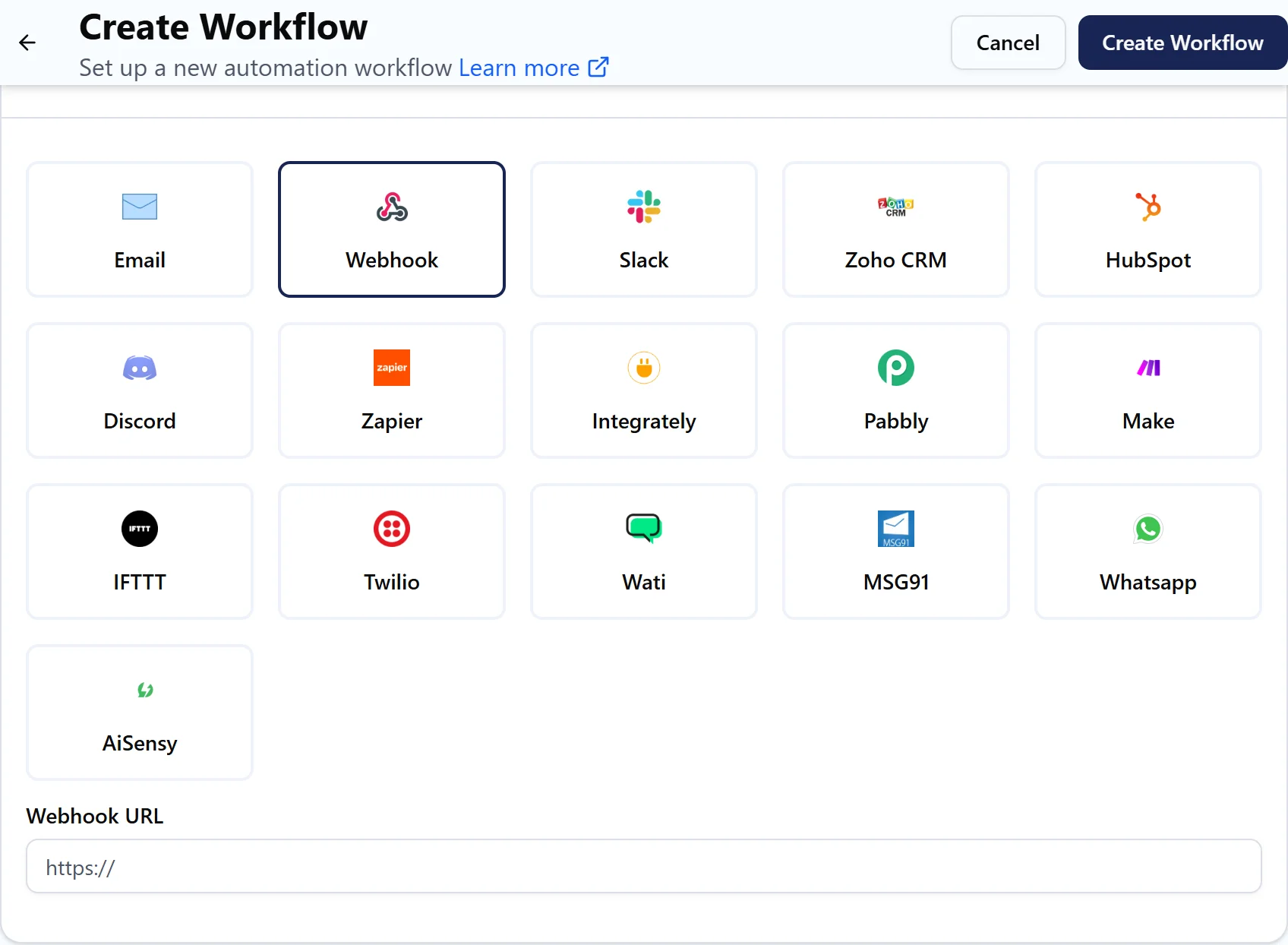
Create one DaySchedule workflow per trigger you need, such as Event Scheduled, Event Canceled and Event Rescheduled, all pointing at the same webhook. The booking.status field tells them apart.
What the webhook sends
DaySchedule sends a JSON POST with the User-Agent header dayschedule.com and two objects, booking and invitee. This example is shortened, and the values are made up:
{
  "booking": {
    "booking_id": 128734,
    "subject": "30 Minute Call with Jane Doe",
    "start_at": "2026-11-20T09:30:00.000Z",
    "end_at": "2026-11-20T10:00:00.000Z",
    "duration": 30,
    "time_zone": "America/New_York",
    "status": "confirmed",
    "location": { "type": "zoom", "name": "Zoom", "join_url": "https://zoom.us/j/..." },
    "host_time": "Thursday, November 20, 2026 at 4:30 AM",
    "invitee_time": "Thursday, November 20, 2026 at 3:00 PM",
    "reschedule_url": "https://dayschedule.com/checkin/?domain=acme&invitee_id=...&action=reschedule",
    "cancel_url": "https://dayschedule.com/checkin/?domain=acme&invitee_id=...&action=cancel"
  },
  "invitee": {
    "name": "Jane Doe",
    "email": "jane@example.com",
    "time_zone": "Asia/Kolkata",
    "questions": [
      { "name": "phone", "label": "Phone number", "value": "+91 98765 43210" }
    ]
  }
}
Times in start_at and end_at are UTC. host_time and invitee_time are ready to show in a message. Answers to your booking form are in invitee.questions. Run a test to see every field your events send.
The webhook must answer with a 2xx status within 30 seconds, or the job is marked as failed. If a workflow fails twice in a row, DaySchedule turns it off and emails you. Check Workflows, then Run History, for the error.
Call the DaySchedule API from n8n
- Create an API key under Settings, then API Keys. See API keys.
- In n8n, add an HTTP Request node.
- Set Authentication to Generic Credential Type, choose Header Auth, and add a header named
Authorizationwith the valueBearer YOUR_API_KEY. - Set the URL to an endpoint from the API reference, such as
https://api.dayschedule.com/v1/bookings.
If other people will connect their own DaySchedule accounts to your n8n workflows, register an OAuth app and use n8n's OAuth2 credential instead of an API key.