
Some people won't click a generic booking link, but they'll happily pick from three or four times in your email. The Times tab of the DaySchedule Chrome extension lets you choose free slots from your calendar and paste them into the message. Each time is a link: the invitee clicks one and lands on the booking form for that exact slot.
Insert times into an email
- Click into the email you're writing in Gmail, Outlook or any other site.
- Right click and choose DaySchedule, then Share available times….
- In the side panel, pick the event type. If it has more than one duration, pick the duration too.
- Pick the invitee's time zone, so the times read correctly for them.
- Click the times you want to offer. Use the arrows to move to the next week.
- Click Insert.
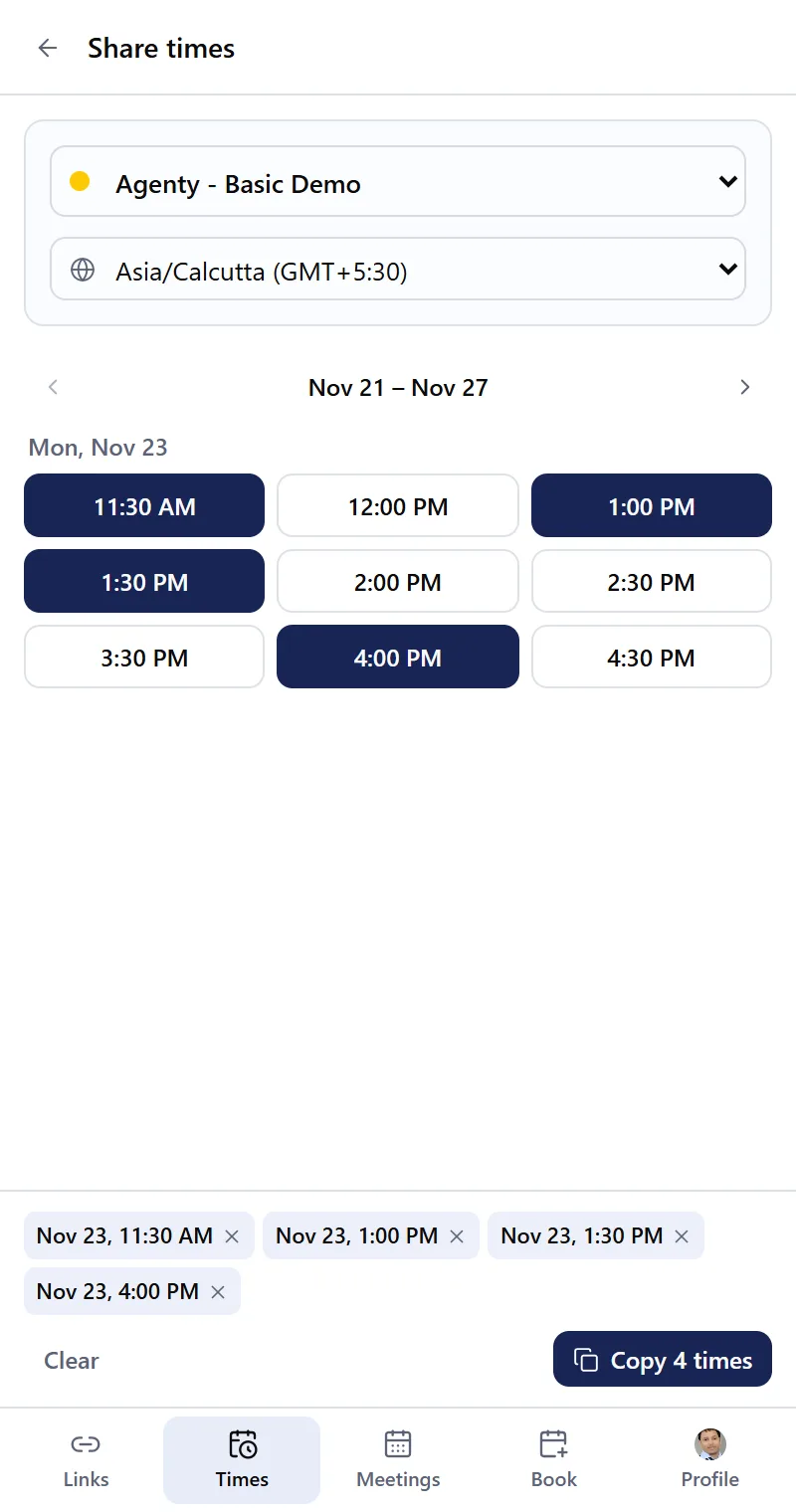
The times are inserted at the cursor, grouped by day, with a See more times link to your full calendar at the end. You can select up to 24 times. Click a selected time again, or the x on its chip at the bottom, to remove it. Clear removes them all.
To use the times somewhere you can't right click, open the Times tab from the toolbar, select the times and click Copy, then paste.
What the invitee sees
In Gmail, Outlook and other editors that keep formatting, each time shows as a button:
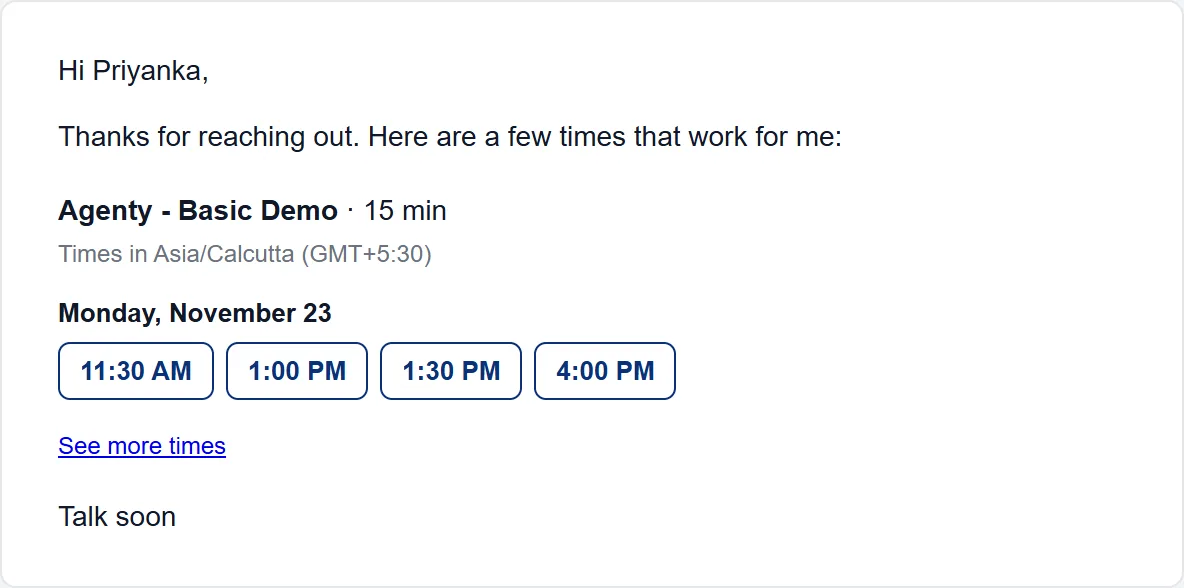
When you paste into a plain text field, you get one line per time with its booking link next to it.
When the invitee clicks a time, the booking page opens straight on the form for that slot, so they only enter their details:
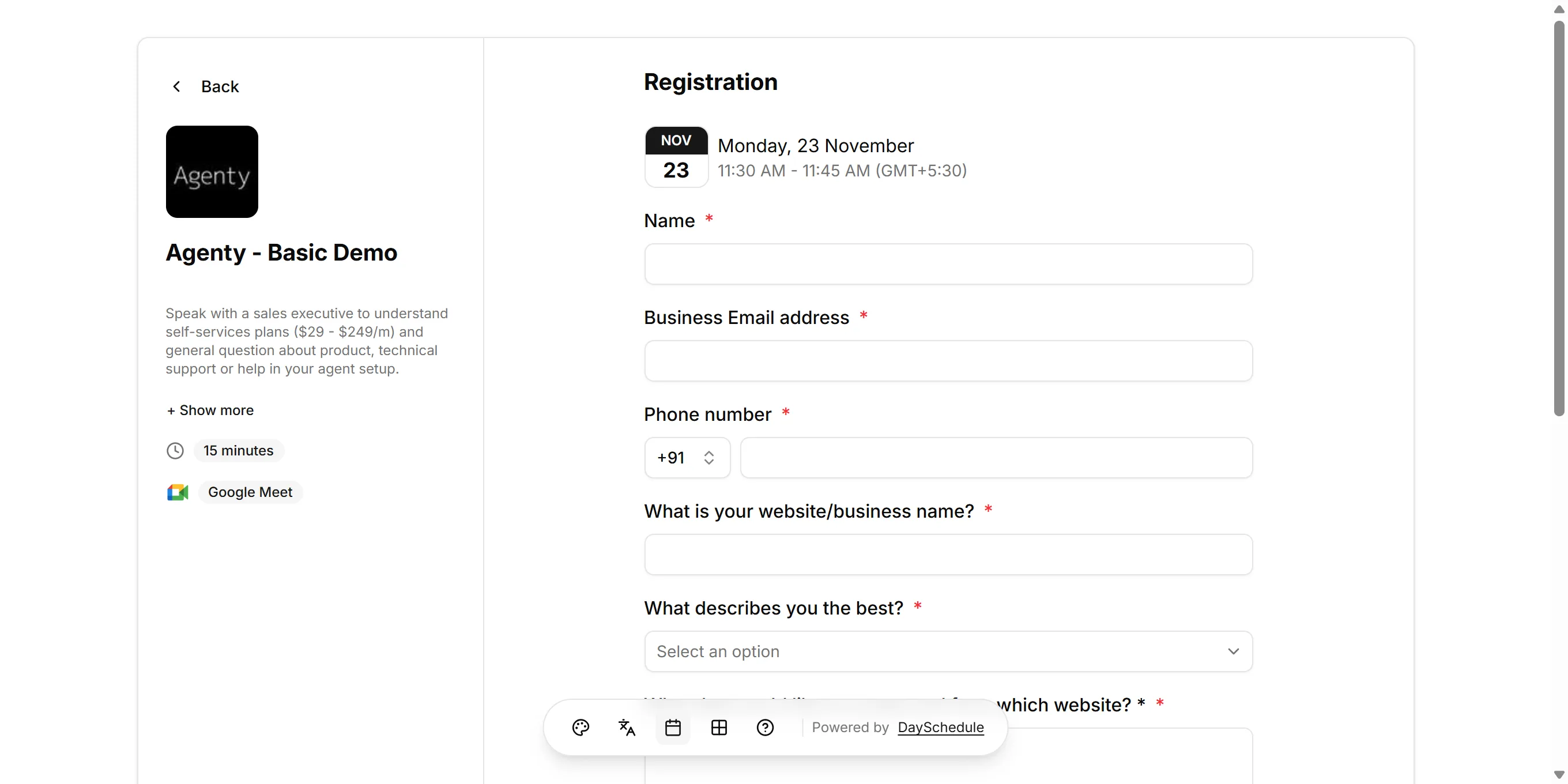
If someone else booked that slot in the meantime, the calendar opens on the same day, so they can pick another time. You don't have to hold the times you offered.
Tips
- Offer three to five times across two or three days. Too many choices slow people down.
- Times come from your availability schedule and connected calendars, so busy times are never offered. Settings like buffer time and minimum notice apply too.
- The extension remembers the last event type you used, but always starts with your own time zone. Change it for each email when the invitee is somewhere else.
- Each time links to
https://yourname.dayschedule.com/event?slot=<ISO time>&duration=<minutes>. You can build these links yourself, for example in an email template. Use?date=YYYY-MM-DDinstead to open the calendar on a day without picking a time.