
The Schedule tab of an event decides which times appear on your booking page. Open the event from Resources and select Schedule. Each card below changes one thing about the slots invitees see.
Offer more than one meeting length
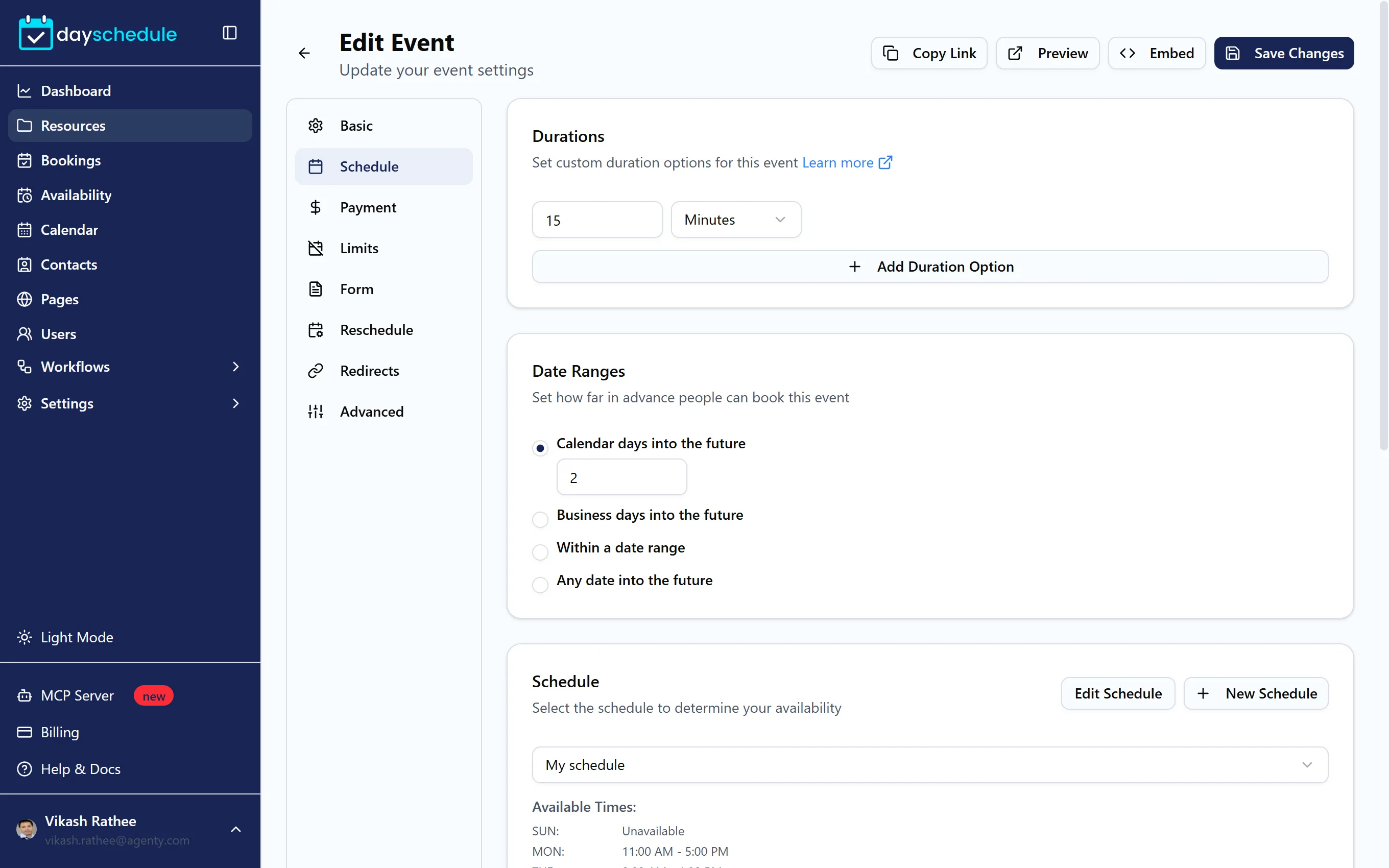
Durations lists the lengths an invitee can choose, such as 15, 30 and 60 minutes. Click Add Duration Option to add one, and pick Minutes or Hours for each. Click the star next to a duration to make it the default that's selected when the page opens. With more than one duration, invitees pick the length they want on the booking page. See custom durations on the scheduling page.
Limit how far ahead people can book
Date Ranges sets the booking window:
- Calendar days into the future, such as 30, counts every day from today.
- Business days into the future counts weekdays only.
- Within a date range opens bookings between a Start Date and End Date only, which suits a conference week or a seasonal offer.
- Any date into the future has no limit.
Pick the schedule
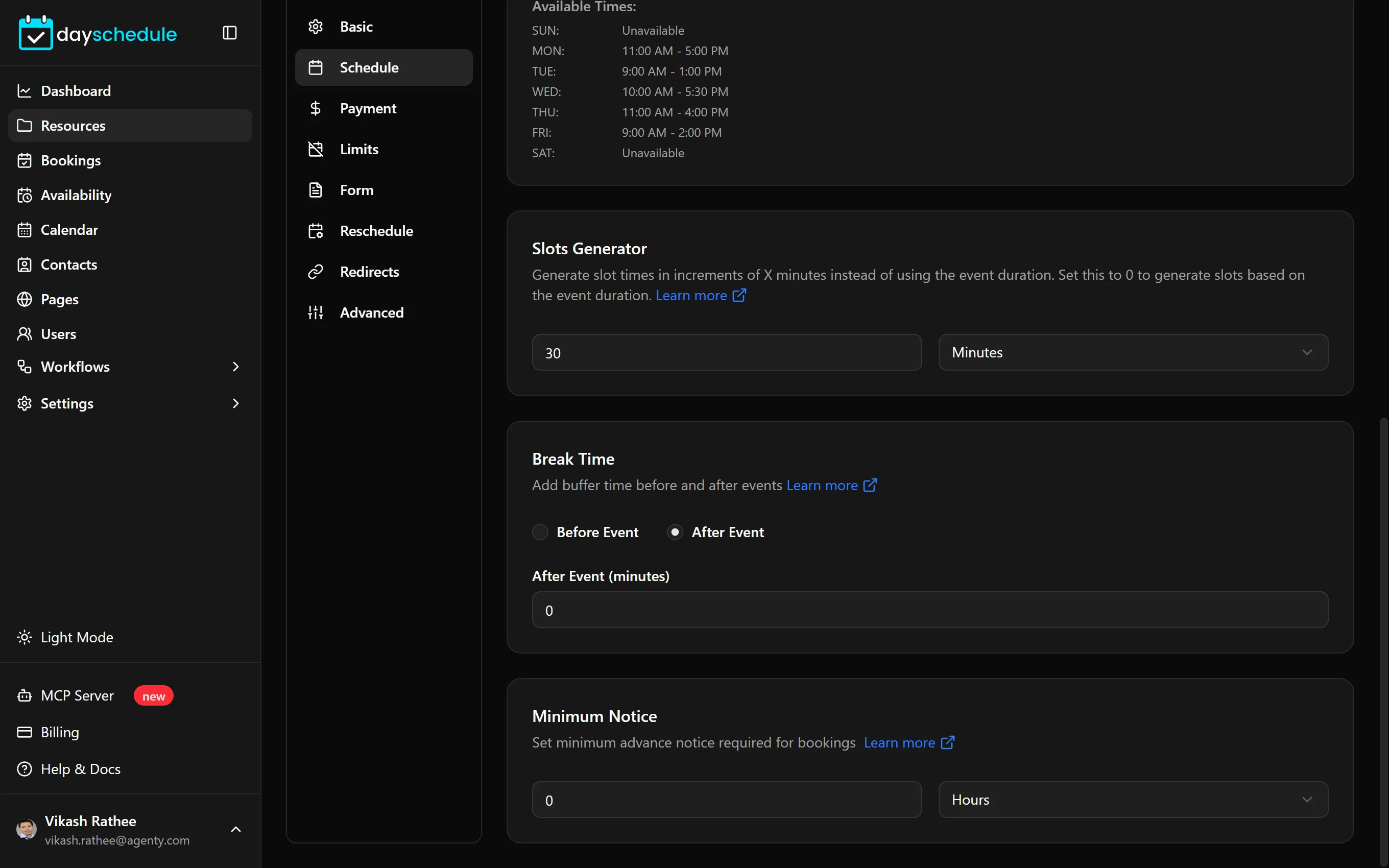
Schedule sets the working hours the event uses. Available Times below the list shows the hours of the selected schedule for each day. Use Edit Schedule to change those hours, or New Schedule to create a separate one, for example evening hours for a premium consultation. See Set working hours and date overrides.
The schedule list shows the schedules of the event owner. If you see "No owner selected", choose an owner on the Basic tab first. Round robin events and service menus don't have this card because they use each member's default schedule.
Change how often slots start
By default, slots start one duration apart: a 60 minute meeting offers 9:00, 10:00 and 11:00. Slots Generator starts slots at a different interval instead. Set it to 30 minutes and the same meeting offers 9:00, 9:30, 10:00 and so on. Set it to 0 to go back to the event duration. See the slot generator guide.
Add buffer time between meetings
Break Time keeps time free around each booking, so meetings don't run back to back. Choose Before Event or After Event and enter the minutes. A 10 minute break after a 30 minute call means that after a 9:00 booking, the next one can't start before 9:40. See how to add buffer times between appointments.
Stop last-minute bookings
Minimum Notice sets how far in advance a booking must be made, in Minutes, Hours or Days. With 4 hours, someone looking at your page at 10:00 can't book anything before 14:00. See minimum notice periods for bookings and cancellations.
Click Save Changes when you're done, then click Preview to check the slots on your booking page.