
Connect Zoho CRM and each new booking can create a lead in Zoho, ready for your sales team to follow up. The Zoho CRM integration is in beta and needs the Pro plan.
Connect Zoho CRM
- Open Settings, then Connections, and select CRM.
- Find Zoho CRM and click New Connection.
- Sign in to Zoho and click Accept to give DaySchedule access to your CRM modules.
The connection shows as Active.

Create leads from bookings
- Open Workflows and click Create Workflow.
- Enter a Name, such as "New bookings to Zoho leads", and choose the resources.
- Under Trigger, choose Event Scheduled and turn on Run immediately.
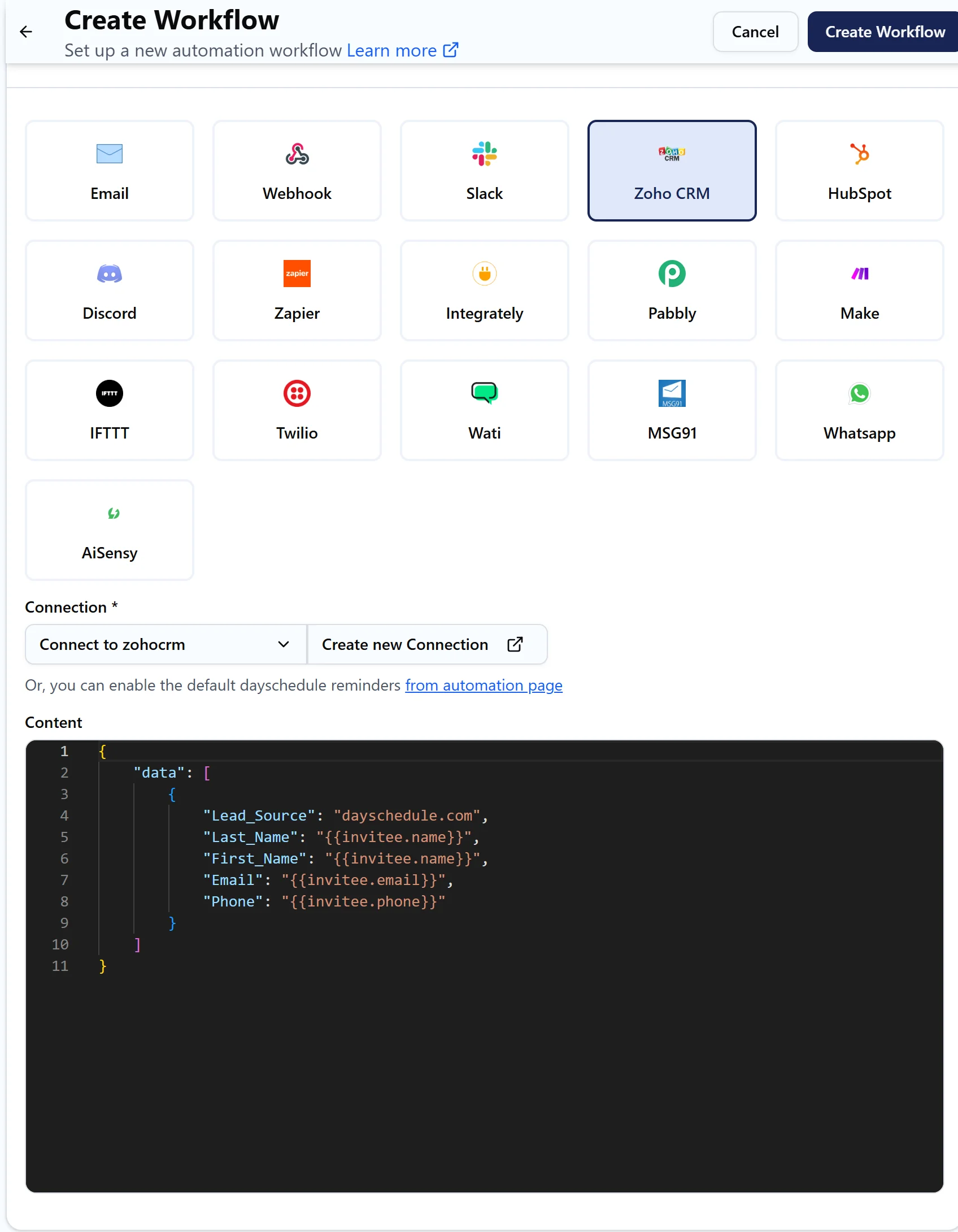
- Under the action, select Zoho CRM and pick your connection.
- Check the Content (see below), click Test run, then Create Workflow.
Map fields to Zoho lead fields
The Content is the lead record. Each key is the API name of a field in Zoho's Leads module:
{
  "data": [
    {
      "Lead_Source": "dayschedule.com",
      "Last_Name": "{{invitee.name}}",
      "First_Name": "{{invitee.name}}",
      "Email": "{{invitee.email}}",
      "Phone": "{{invitee.phone}}"
    }
  ]
}
Zoho requires Last_Name on every lead, so keep it. The default puts the full name in both name fields. Change Lead_Source to a value from your Lead Source picklist, such as "Website", so your Zoho reports group these leads correctly. The API names of custom fields are listed on the API Names page in Zoho CRM's developer settings.
If the lead isn't created
Open Workflows, then Run History, and click the job to read Zoho's response. A wrong API name, a picklist value Zoho doesn't know, or a missing required field are the usual causes. A connection that shows Disabled needs the refresh icon to sign in again.