
The Services resource turns one booking link into a full service menu. Customers pick a service, such as "Haircut and blow dry, 45 min, $40", choose a staff member or any available staff, pick a time and pay. Salons, spas, clinics, repair shops and pet groomers use it to replace a price list and a phone line.
Create a service menu
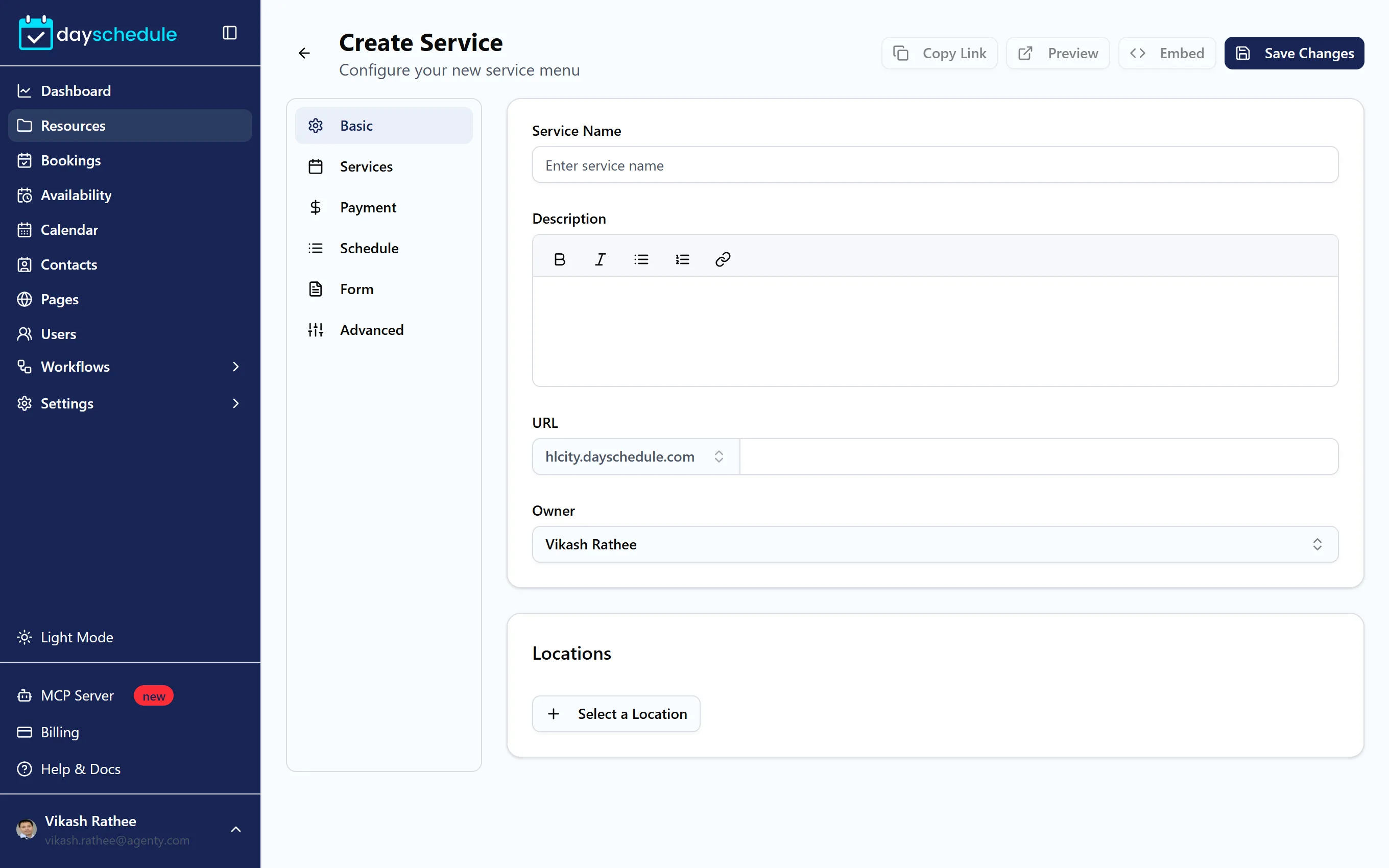
- Open Resources, click Create Resource, and choose Services.
- On the Basic tab, enter the Service Name for the menu as a whole, such as "Downtown Salon", a Description, the URL, the Owner and the Locations where services take place.
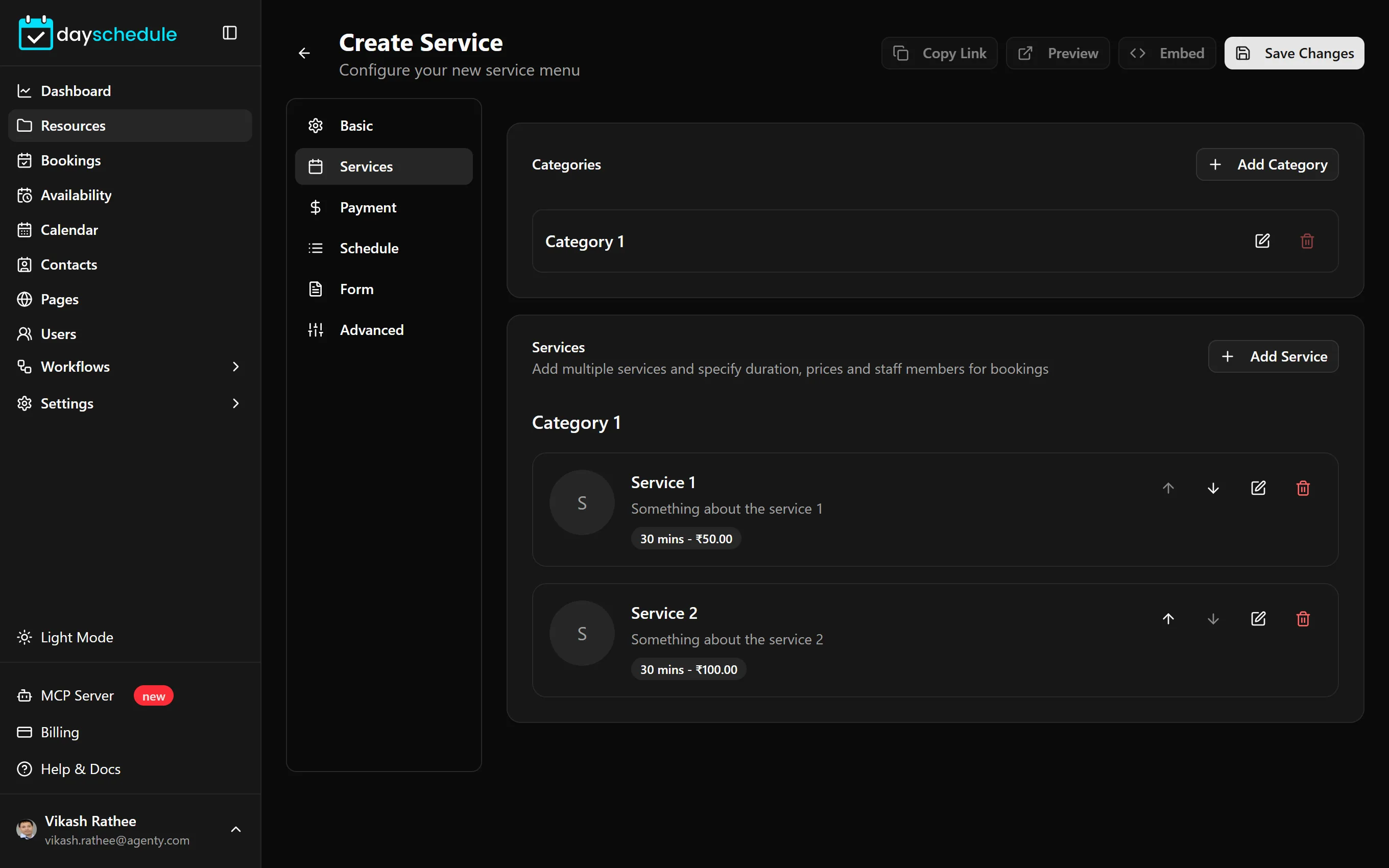
- Open the Services tab and add your categories and services.
- Click Save Changes.
Services are a premium resource type. See plans and billing.
Add categories and services
On the Services tab:
- Click Add Category and enter a Category Name and Description, for example
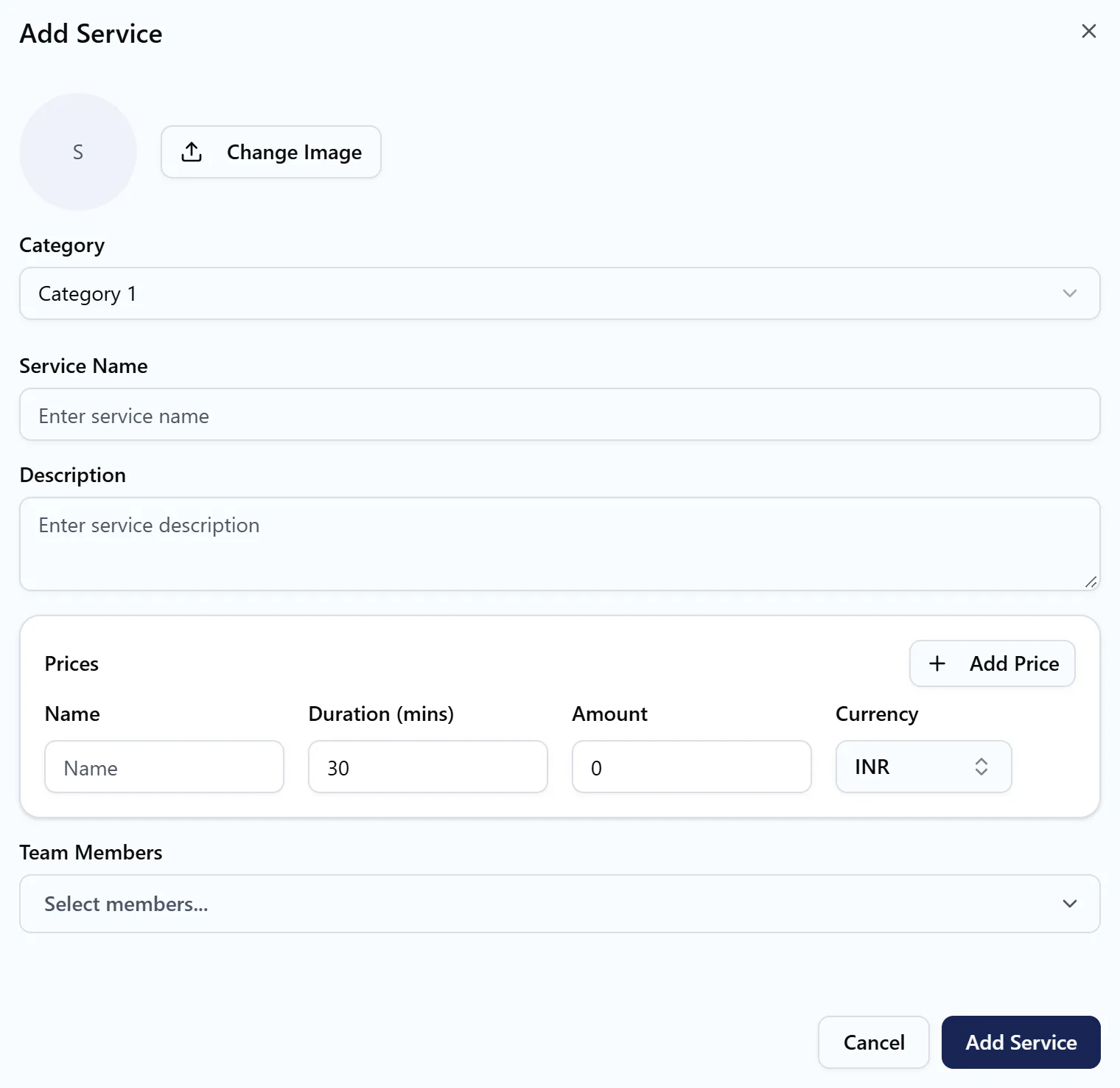
HairorNails. Categories group the menu on the booking page. - Click Add Service and fill in:
- Category the service belongs to.
- Service Name and Description.
- Prices: one row per option, each with a Name, Duration (mins), Amount and Currency. A haircut could have "Short hair, 30, 25, USD" and "Long hair, 60, 45, USD".
- Team Members who perform the service.
- Save the service and repeat for the rest of your menu.
How staff availability works
A service menu has no schedule of its own. DaySchedule uses the default (★) schedule of each team member assigned to a service, together with their connected calendar. Customers can pick a specific staff member or choose Any Available Staff on the booking page.
To change someone's working hours, edit their default schedule under Availability. See Set working hours and date overrides. The Schedule tab still controls how far ahead customers can book, slot intervals, breaks between appointments and minimum notice. See Durations, buffers and notice.
Take payment for services
Connect a payment gateway and select it on the Payment tab. The price customers pay comes from the service they pick, so set prices on the Services tab rather than on the Payment tab. See Accept payments for bookings.
Related
- Salon, spa and massage therapy scheduling
- Home repair and pet services scheduling
- Customize the booking form