
Every appointment, class registration, webinar seat and venue booking appears under Bookings. Most day-to-day work happens here: joining the next call, approving requests, moving a meeting or cancelling one.
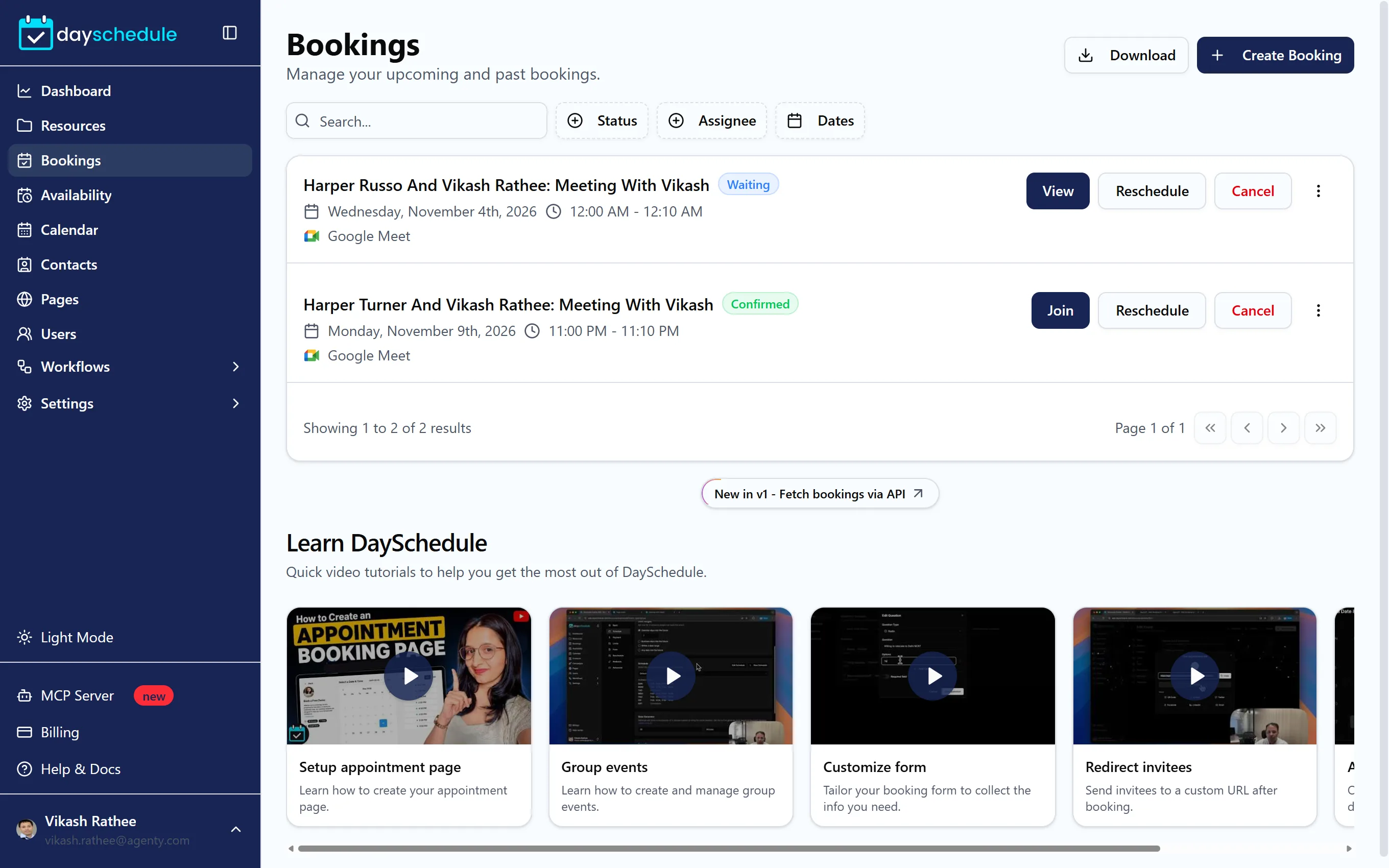
Find a booking
Use the filters above the list:
- Search for a booking by text.
- Status shows Confirmed, Waiting or Cancelled bookings. Waiting bookings are on hold, for example until you approve them.
- Assignee shows the bookings of one team member.
- Dates limits the list to a date range.
Each booking shows the title, status, date and time in your time zone and the location.
Act on a booking from the list
The buttons on each booking change with its state:
- Approve confirms a booking that needs approval. See the approval guide.
- Join opens the video meeting link.
- View opens the booking details.
- Reschedule moves it to a new date and time.
- Cancel cancels it with a reason.
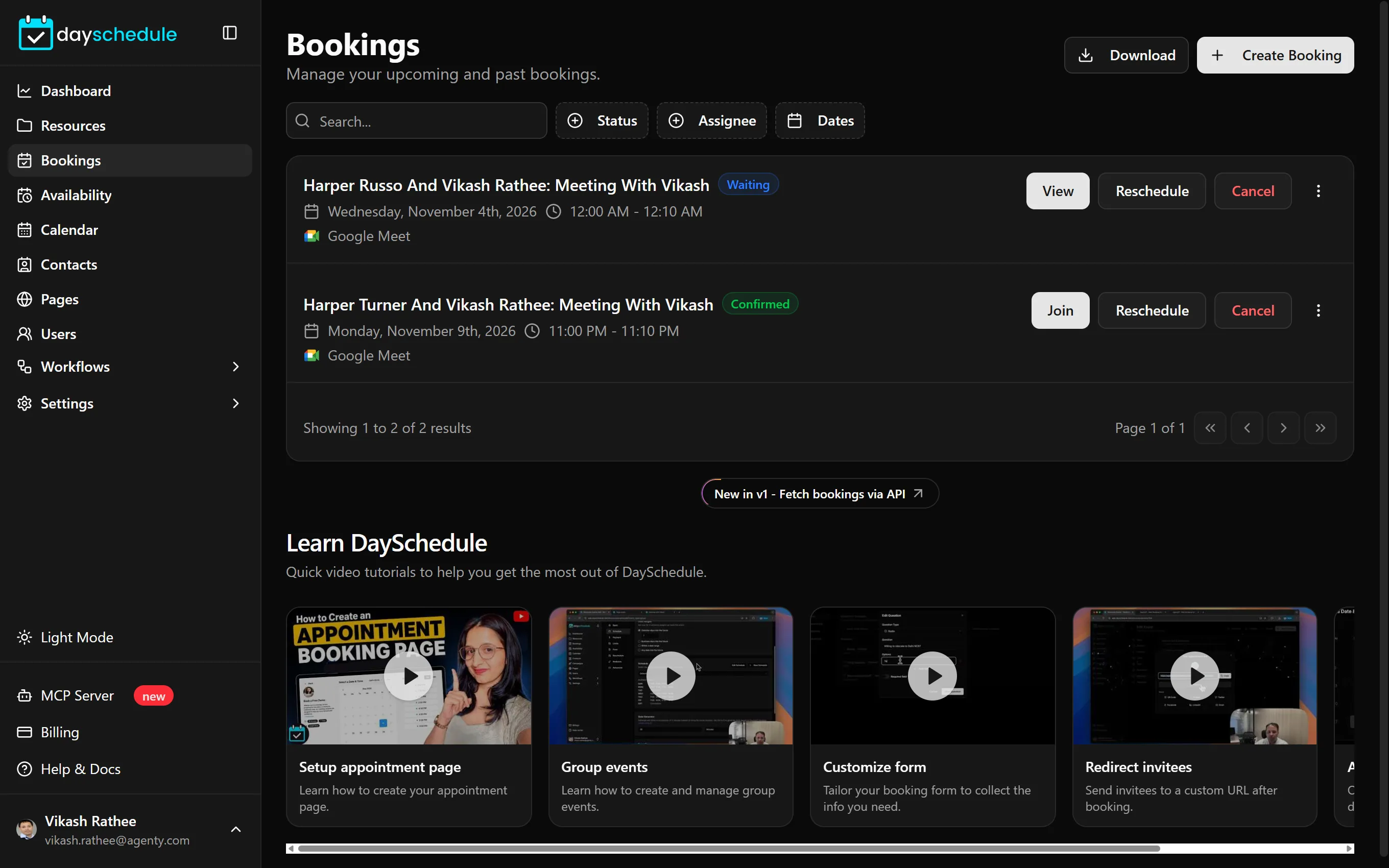
The menu at the end of the row has Mark as Completed, Mark as Confirmed and Mark as No-Show, plus Delete. Deleting removes the booking from DaySchedule entirely, while cancelling keeps a record and notifies the invitee.
See bookings on a calendar
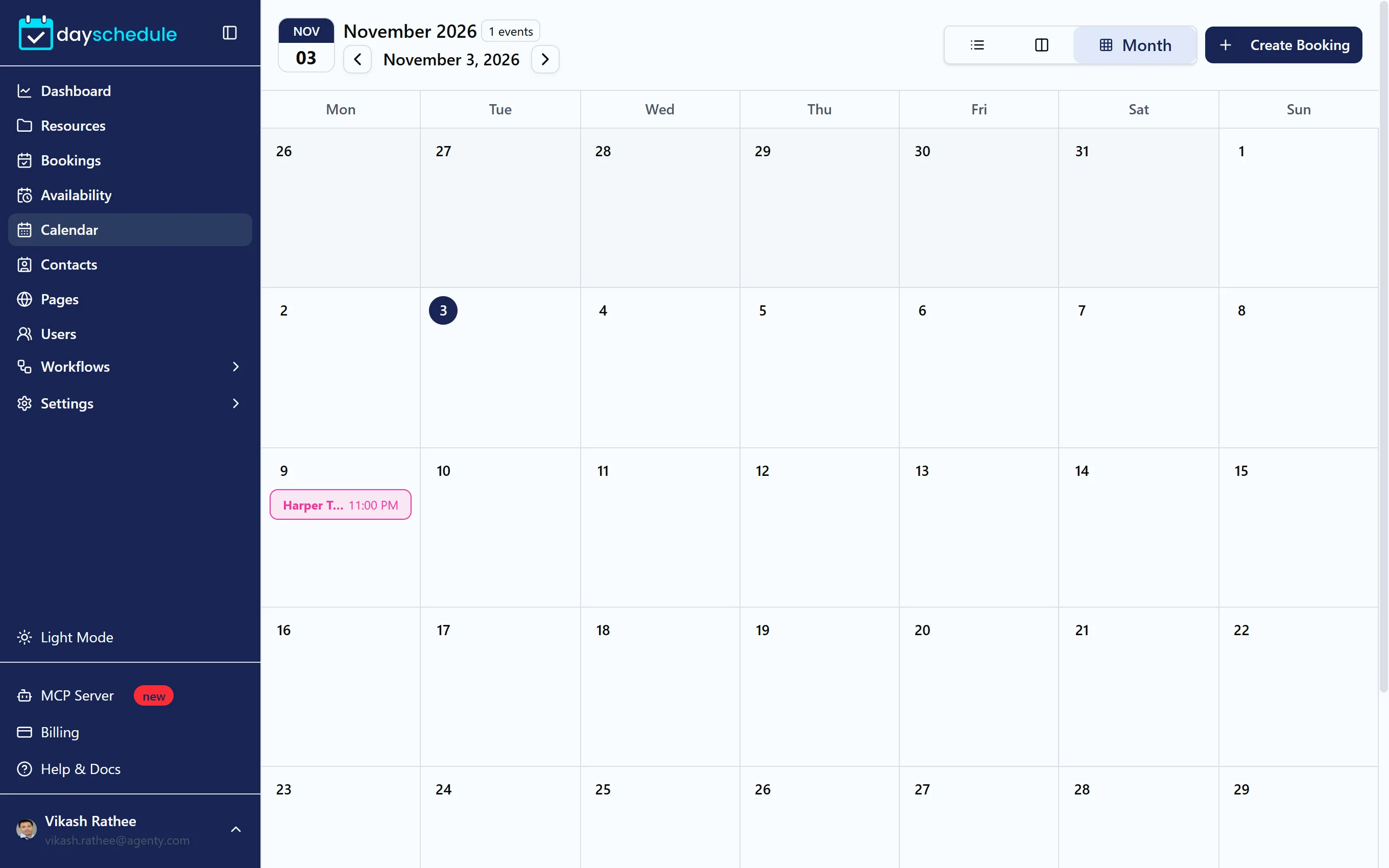
Calendar in the sidebar shows the same bookings in day, week or month view, colored by event. Click Create Booking to add one from there. To show your DaySchedule bookings in Google Calendar or Outlook instead, connect your calendar.
Download bookings to Excel
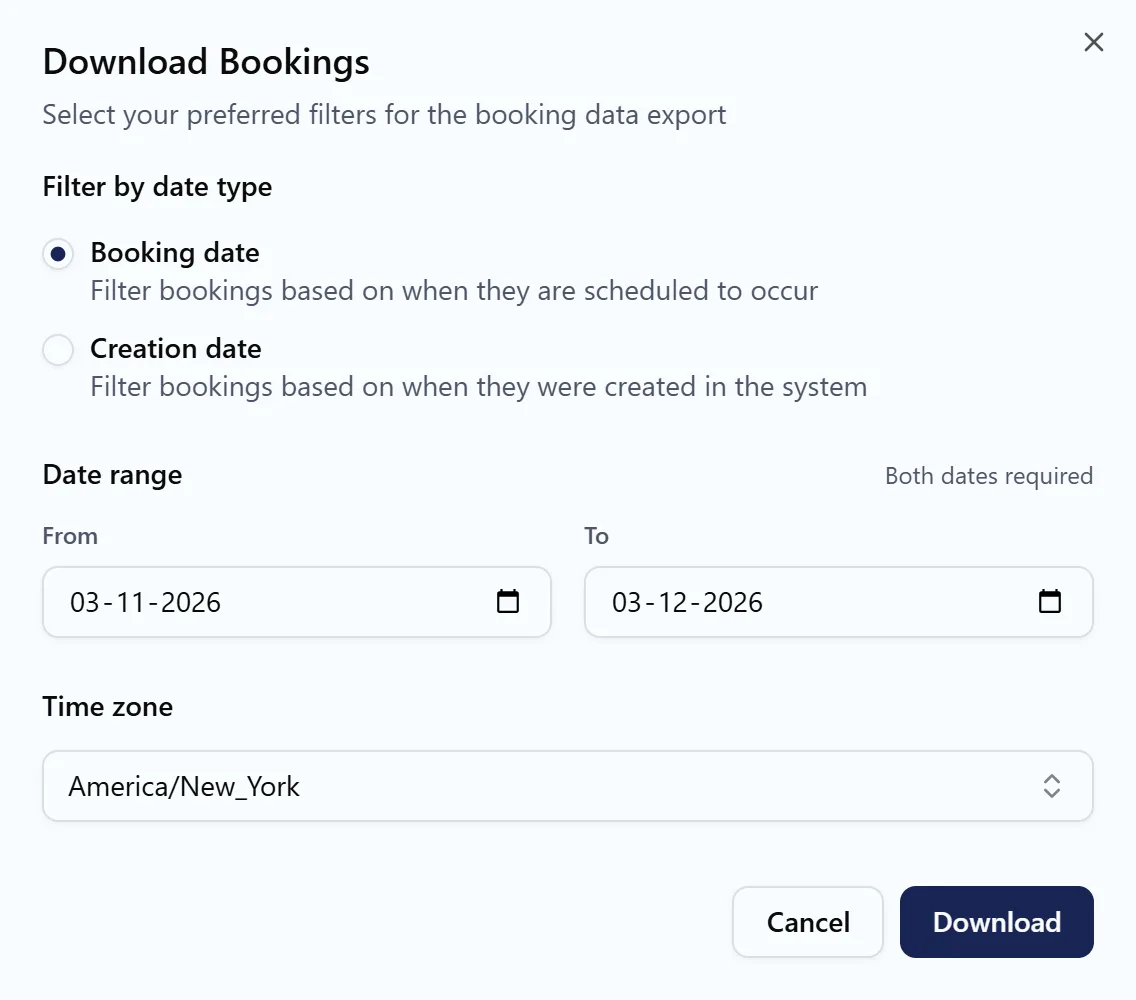
Click Download at the top of the Bookings page:
- Under Filter by date type, choose Booking date to export bookings scheduled to happen in the range, or Creation date to export bookings made in the range.
- Set the Date range with From and To. Both dates are required.
- Pick the Time zone for the exported times.
- Download the file.
The export includes every invitee and their form answers, so you can use it for attendance lists, invoicing or reporting. See also download booking invitees registration data in Excel.
Get bookings with the API or the mobile app
- The Bookings API lists, creates, reschedules and cancels bookings from your own code.
- The DaySchedule mobile app shows your bookings on iOS and Android.