
The location tells invitees where to meet. For video apps, DaySchedule creates a unique meeting link for each booking and puts it in the confirmation email, the calendar invite and the booking in your dashboard.
Add a location to an event
- Open the event from Resources. The Location card is on the Basic tab.
- Click Select a Location.
- Pick a location type and fill in its details.
- Click Save Changes.
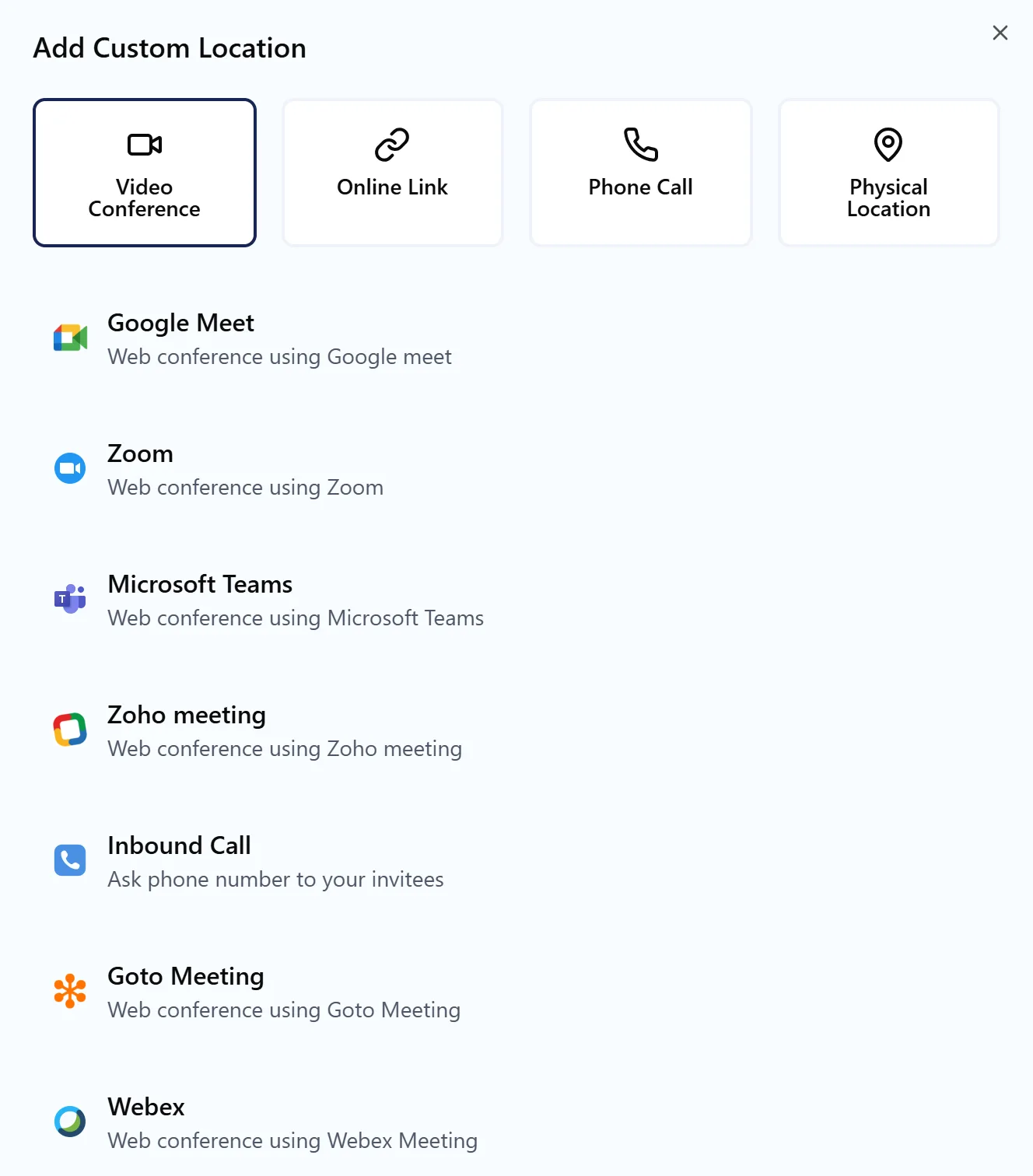
Add more than one location to let invitees choose, for example Zoom or a phone call. Remove one with the x next to it.
Location types
Video Conference creates a meeting link for every booking:
| App | Setup guide |
|---|---|
| Google Meet | Google Calendar and Meet |
| Zoom | Zoom for appointments |
| Microsoft Teams | Teams for appointments |
| Zoho meeting | Zoho Meeting for appointments |
| Goto Meeting, Webex, Join me | Connect the app in Settings, then Connections |
The same list has two more options. Inbound Call asks invitees for their phone number so you can call them, and Ask Invitee lets invitees enter a location of their own.
The video app has to be connected before links can be created. Open Settings, then Connections, or follow Go to Connections under the location card. See Connect calendars, video and payment apps.
Online Link uses a fixed link you provide, such as your personal meeting room or a WhatsApp chat link. Enter a Meeting Name, the Meeting URL and any Additional Information, like a passcode. See provide a custom online meeting link and schedule calls on WhatsApp.
Phone Call is a number invitees call you on. Enter a Call Name, the Phone Number and instructions such as an extension.
Physical Location is an address for in-person meetings. Enter the Location Name, Street Address, City, State/Province, ZIP/Postal Code and Country, plus an optional phone and email for the location.
Locations for round robin members
In a round robin event, each member has their own location instead of one for the whole event. That way every member's meeting uses their own Zoom or Google Meet account.
Hide the location until the booking is confirmed
To keep an address or link off the booking confirmation page, turn on Hide Location on the Advanced tab. See Advanced event settings.
Find the meeting link of a booking
Open the booking from Bookings. The location card shows the meeting link with Join Meeting and Copy, or the phone number with Call. See Booking details.