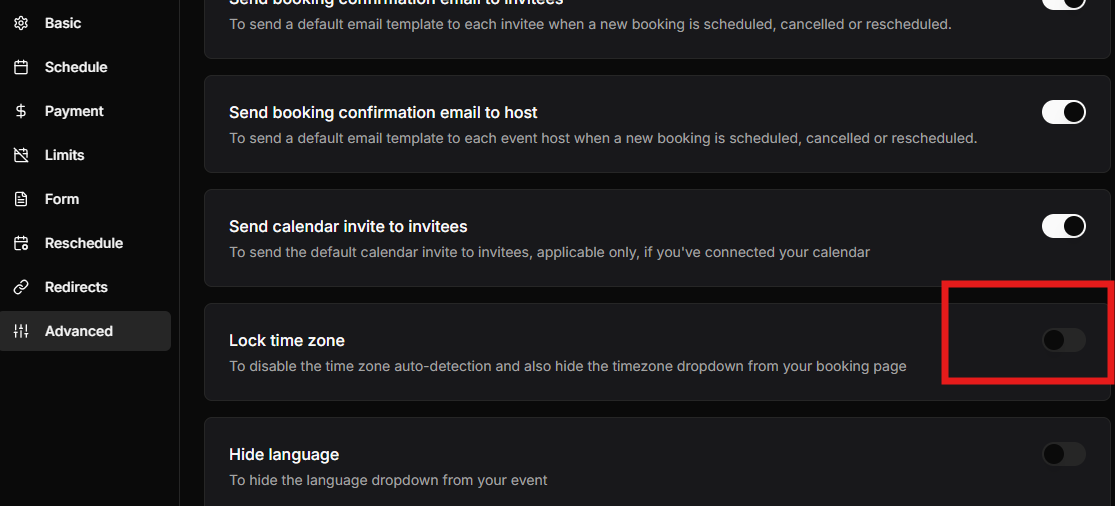
DaySchedule is designed to simplify international scheduling by eliminating the confusion of time zone differences. When you share your scheduling link with customers across the globe, the software ensures that everyone sees the correct time based on their specific location.
When an invitee opens your DaySchedule booking page, the application automatically detects their local time zone through their web browser settings. The availability slots are then instantly converted and displayed in the viewer timezone.
This ensures that a 10 AM appointment in New York correctly appears as 3 PM in London or 8:30 PM in New Delhi without any manual calculations required by either party.
Automatic DST adjustments
Handling Daylight Saving Time transitions can be complex when scheduling meetings weeks or months in advance. DaySchedule automatically calculates DST changes based on the geographic location of both the owner and the invitee. If a region moves its clock forward or backward, the software adjusts the displayed slots to maintain the intended appointment time, preventing missed meetings or scheduling errors during seasonal transitions.
Locking the timezone
While automatic detection is the default behavior, there are scenarios where you may want to disable this feature. For example, if you are hosting an in-person workshop, physical event, or an on-site consultation, you might want all invitees to see the time in the event location regardless of where they are currently located.
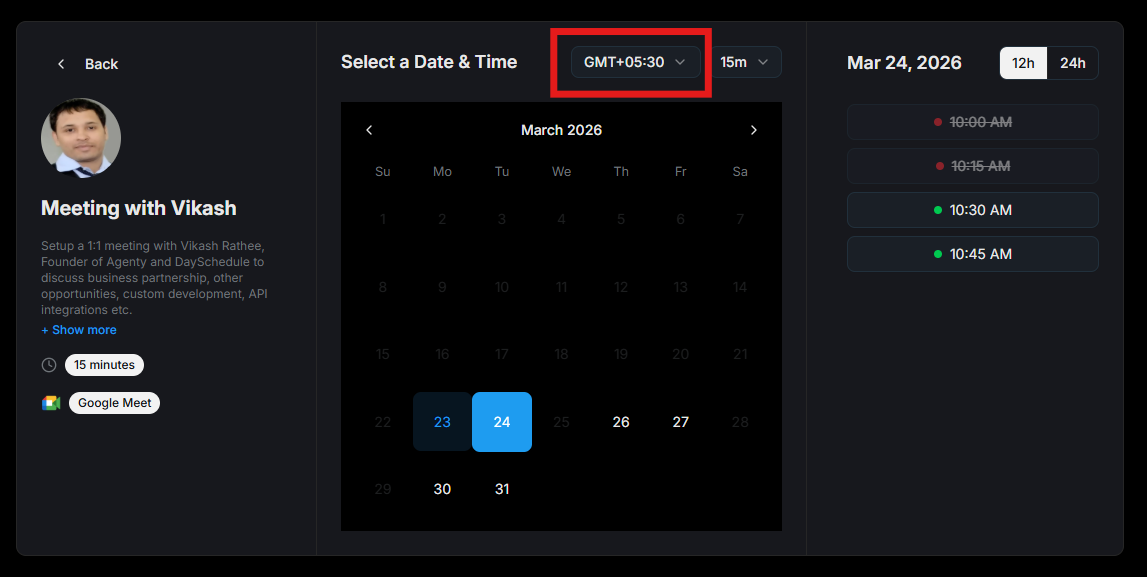
DaySchedule allows the account owner to lock the timezone to a particular region. When this setting is enabled, the automatic detection is bypassed, and every invitee will see the schedule in the fixed timezone chosen by the owner under schedule settings.
Steps to lock your timezone
- Log in to your DaySchedule account and navigate to the Resources page.
- Now, edit your event or webinar.
- Enable the Timezone setting under advanced tab.